> ## Documentation Index
> Fetch the complete documentation index at: https://waffo.com/docs/llms.txt
> Use this file to discover all available pages before exploring further.
# Merchant Portal cashier customization
> Configure cashier Logo, theme styles, sub-merchant styles, publishing rules, and permissions in the Merchant Portal.
You can configure the default Waffo cashier style in the Merchant Portal without code changes. After you save and publish the configuration, newly created orders use the latest style.
API parameters still have higher priority than Portal configuration. If the order creation request includes `paymentInfo.cashierAppearance`, that order uses the style passed in the API request.
## Open the configuration page
Log in with an account that has the required permissions.
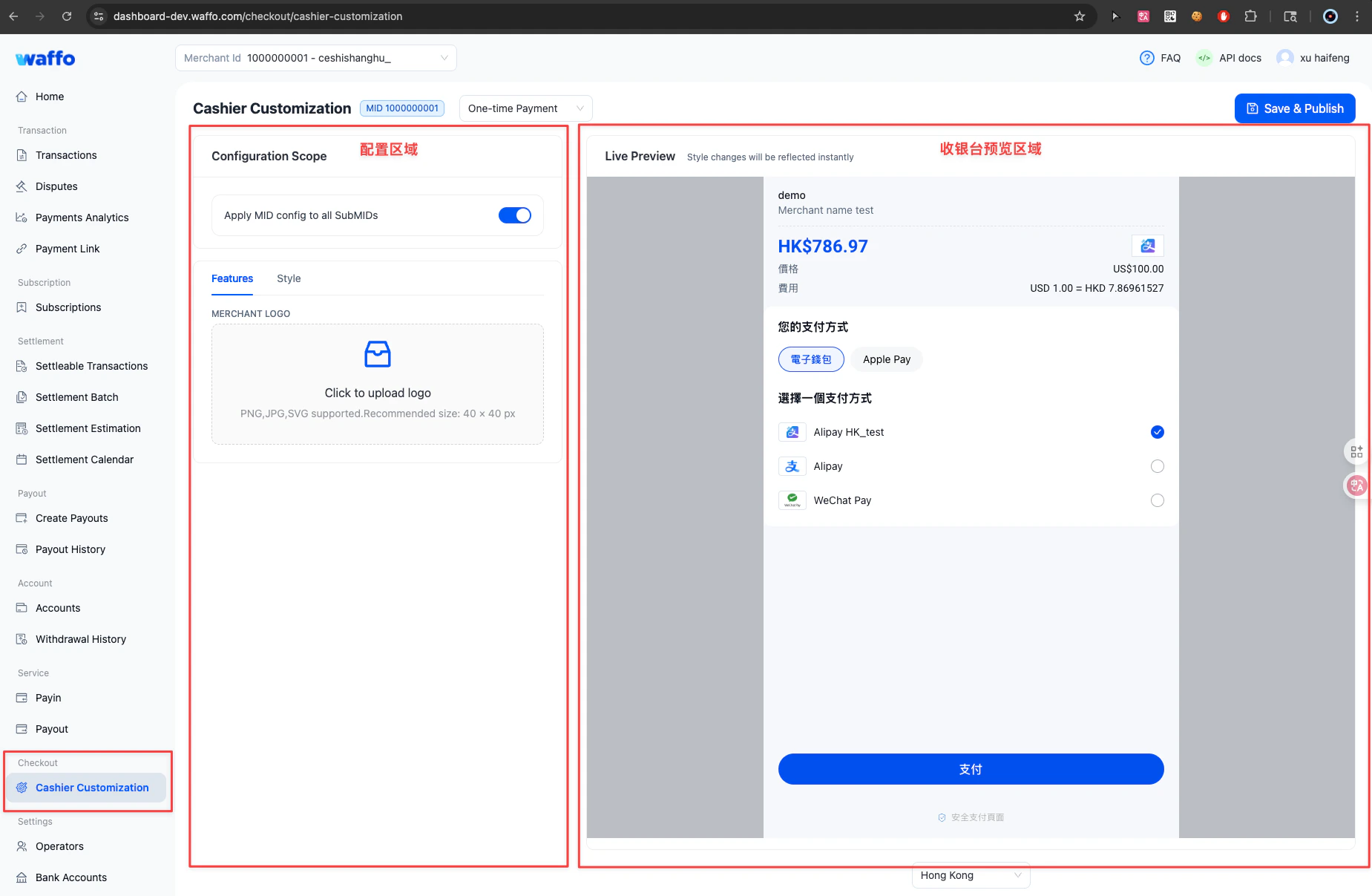
Go to **Checkout → Cashier Customization**.
Use the left configuration panel to update the Logo, theme colors, base font size, and corner radius.
Use the preview area on the right side to check the cashier display.
 ## Upload merchant Logo
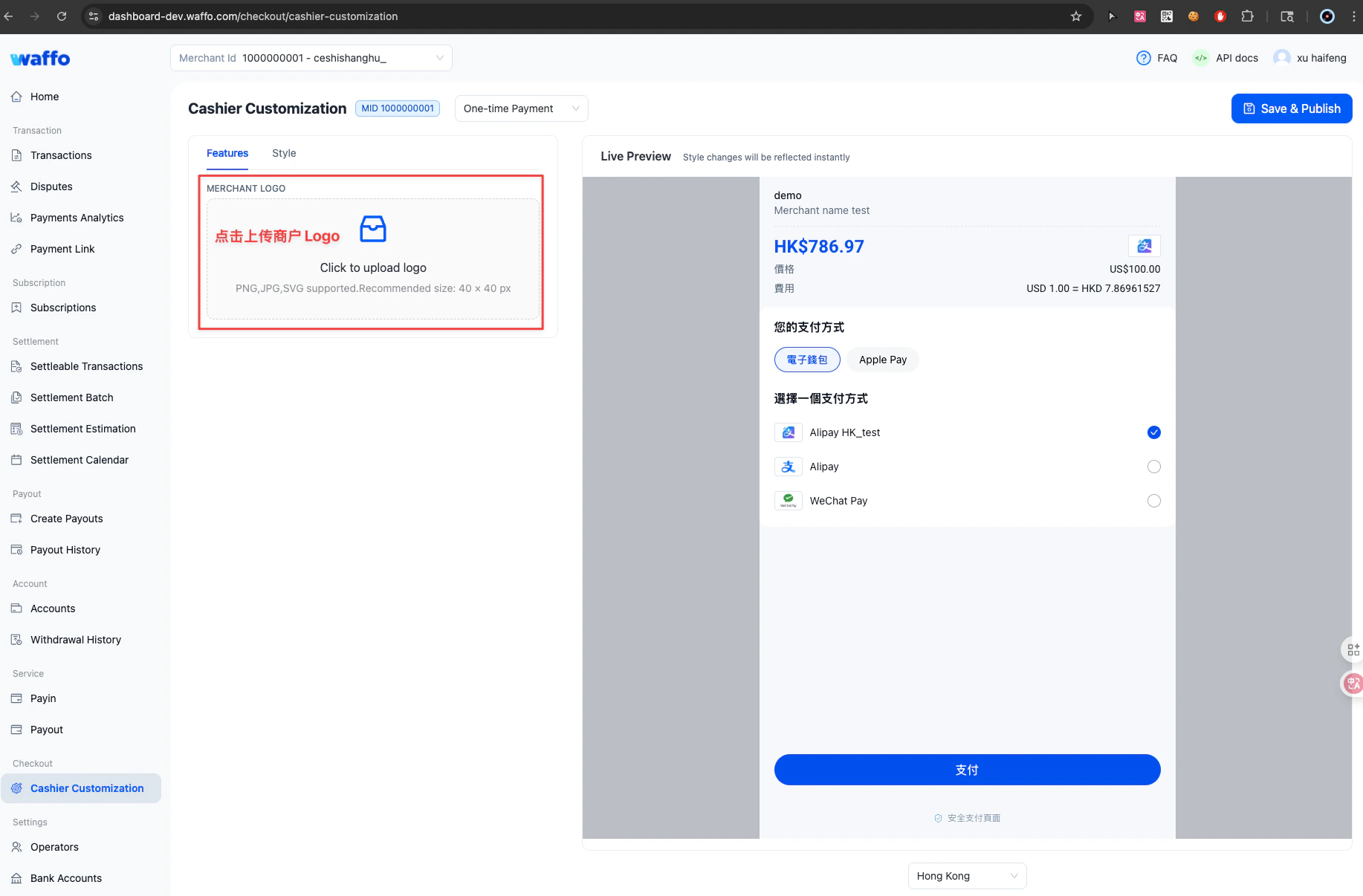
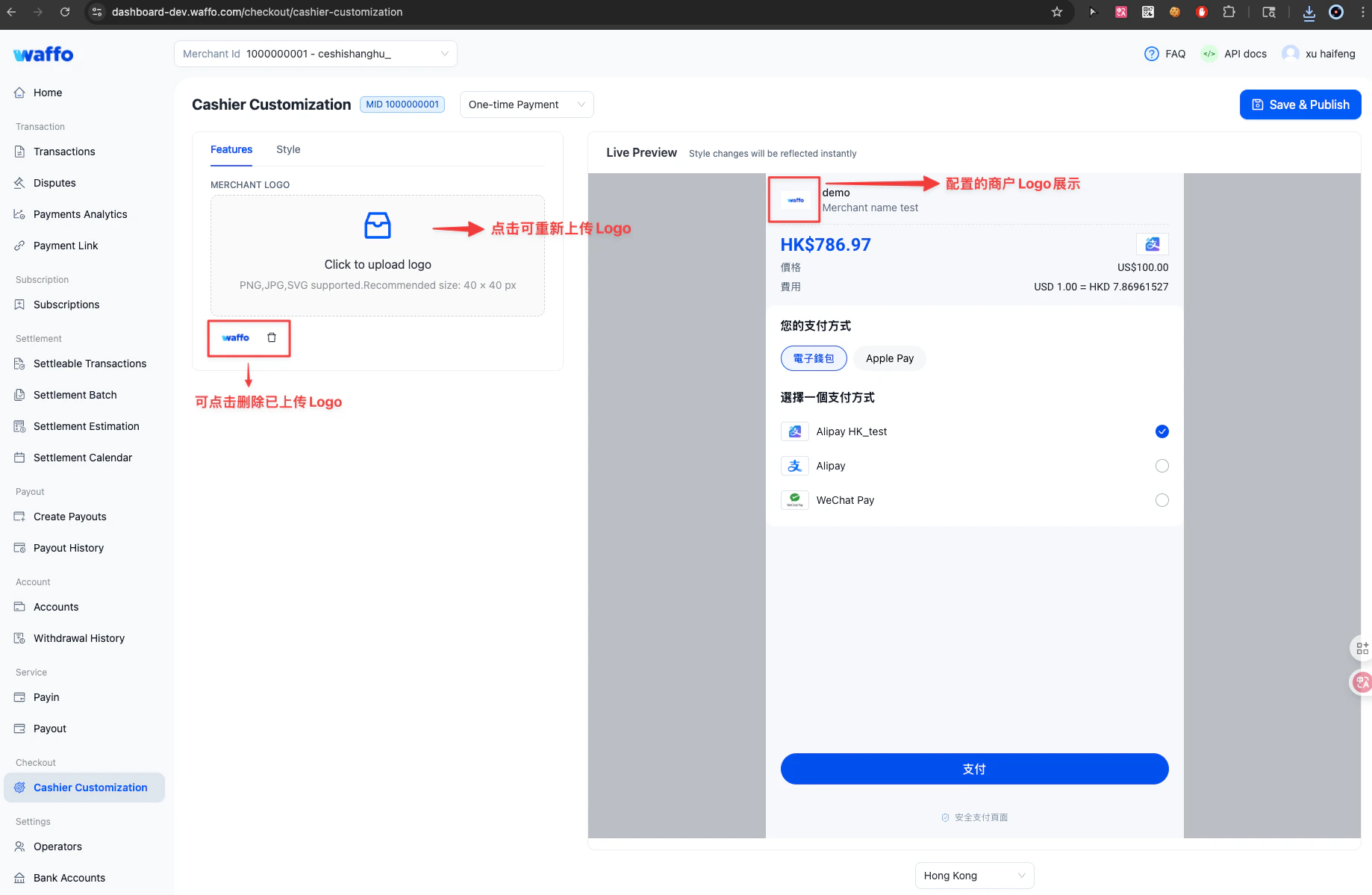
Upload the cashier Logo on the **Features** page.
| Item | Description |
| ----------------- | -------------------------- |
| Supported formats | `PNG`, `JPG`, `SVG` |
| Recommended size | `40 x 40 px` |
| Before upload | Click or drag to upload |
| After upload | Replace or delete the Logo |
## Upload merchant Logo
Upload the cashier Logo on the **Features** page.
| Item | Description |
| ----------------- | -------------------------- |
| Supported formats | `PNG`, `JPG`, `SVG` |
| Recommended size | `40 x 40 px` |
| Before upload | Click or drag to upload |
| After upload | Replace or delete the Logo |
 ## Set cashier style
Configure the cashier theme on the **Style** page. You can apply a preset theme or customize colors and style parameters based on your brand guidelines.
## Set cashier style
Configure the cashier theme on the **Style** page. You can apply a preset theme or customize colors and style parameters based on your brand guidelines.
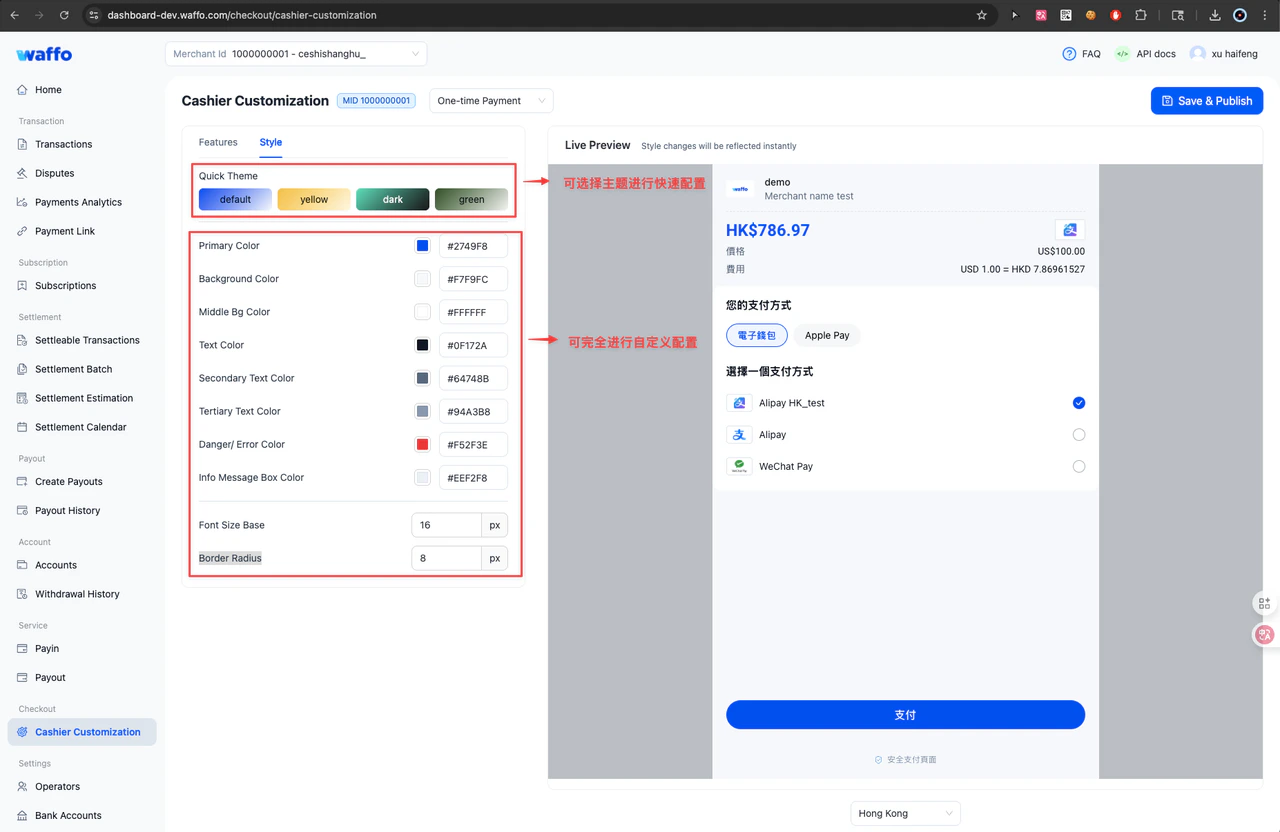 ### Color fields
| Field | Description |
| ---------------------- | -------------------------------------------------- |
| Primary Color | Primary color for buttons and highlighted elements |
| Background Color | Page background color |
| Middle Bg Color | Middle area background color |
| Text Color | Main text color |
| Secondary Text Color | Secondary text color |
| Tertiary Text Color | Tertiary text color |
| Danger / Error Color | Danger or error state color |
| Info Message Box Color | Information message box color |
### Style parameters
| Field | Description |
| -------------- | -------------- |
| Font Size Base | Base font size |
| Border Radius | Corner radius |
## Preview the result
As you update settings, the preview area on the right side shows the cashier result in real time. You can switch the country or region to check the display for different currencies, languages, and payment methods.
### Color fields
| Field | Description |
| ---------------------- | -------------------------------------------------- |
| Primary Color | Primary color for buttons and highlighted elements |
| Background Color | Page background color |
| Middle Bg Color | Middle area background color |
| Text Color | Main text color |
| Secondary Text Color | Secondary text color |
| Tertiary Text Color | Tertiary text color |
| Danger / Error Color | Danger or error state color |
| Info Message Box Color | Information message box color |
### Style parameters
| Field | Description |
| -------------- | -------------- |
| Font Size Base | Base font size |
| Border Radius | Corner radius |
## Preview the result
As you update settings, the preview area on the right side shows the cashier result in real time. You can switch the country or region to check the display for different currencies, languages, and payment methods.
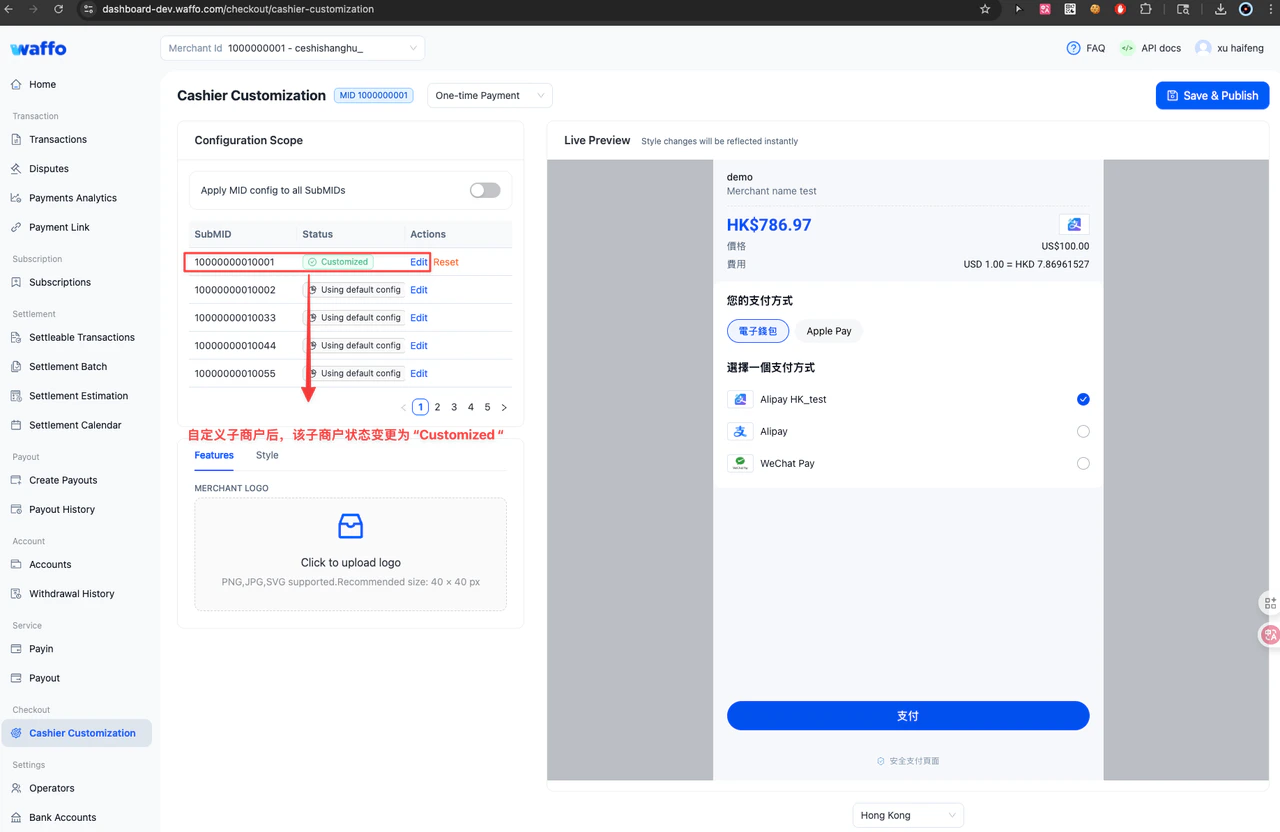 Some style fields may not appear immediately in the current preview. This usually does not mean the configuration failed. Cashier page structure can vary by country, region, or product type. If the current preview page does not contain the affected element, the style change will not be visible. Switch to another country, region, or product type to continue checking.
## Configure sub-merchant styles
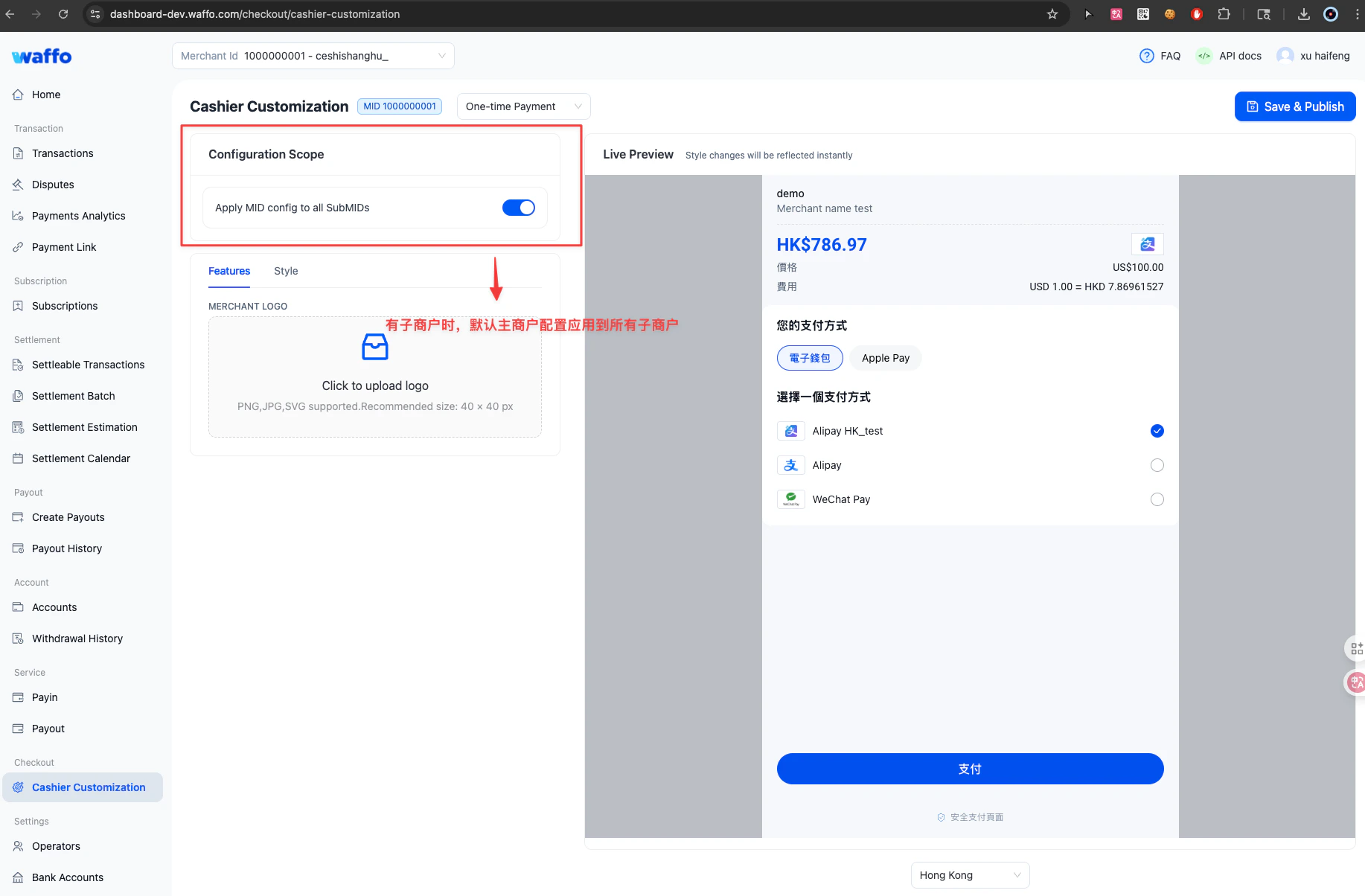
If your account has sub-merchants (SubMIDs), the main merchant (MID) configuration applies to all sub-merchants by default.
Some style fields may not appear immediately in the current preview. This usually does not mean the configuration failed. Cashier page structure can vary by country, region, or product type. If the current preview page does not contain the affected element, the style change will not be visible. Switch to another country, region, or product type to continue checking.
## Configure sub-merchant styles
If your account has sub-merchants (SubMIDs), the main merchant (MID) configuration applies to all sub-merchants by default.
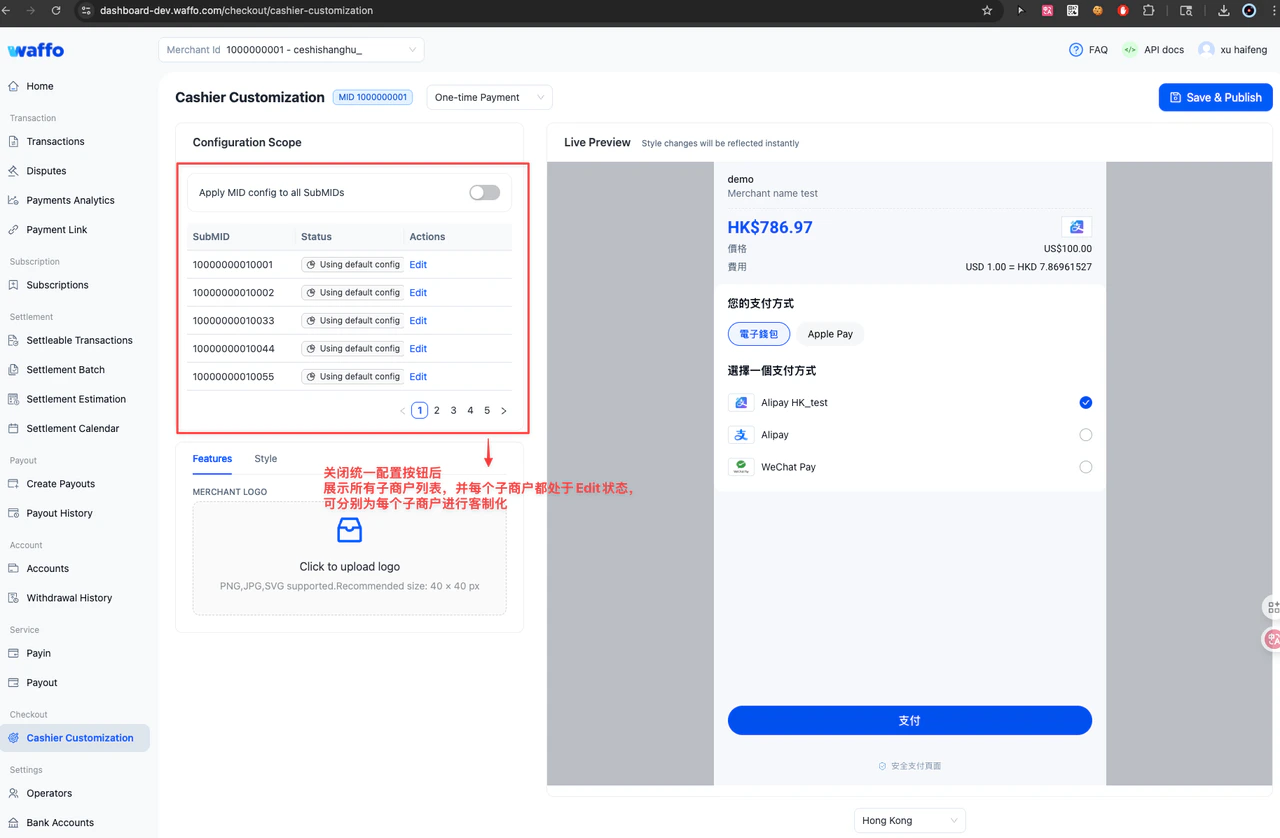 To configure a separate style for a sub-merchant:
Turn off **Apply MID config to all SubMIDs**.
Click **Edit** in the sub-merchant list.
Configure **Features** and **Style** in the same way as the main merchant.
After saving, the sub-merchant status is shown as **Customized**.
Configuring one sub-merchant does not affect other sub-merchants.
To configure a separate style for a sub-merchant:
Turn off **Apply MID config to all SubMIDs**.
Click **Edit** in the sub-merchant list.
Configure **Features** and **Style** in the same way as the main merchant.
After saving, the sub-merchant status is shown as **Customized**.
Configuring one sub-merchant does not affect other sub-merchants.
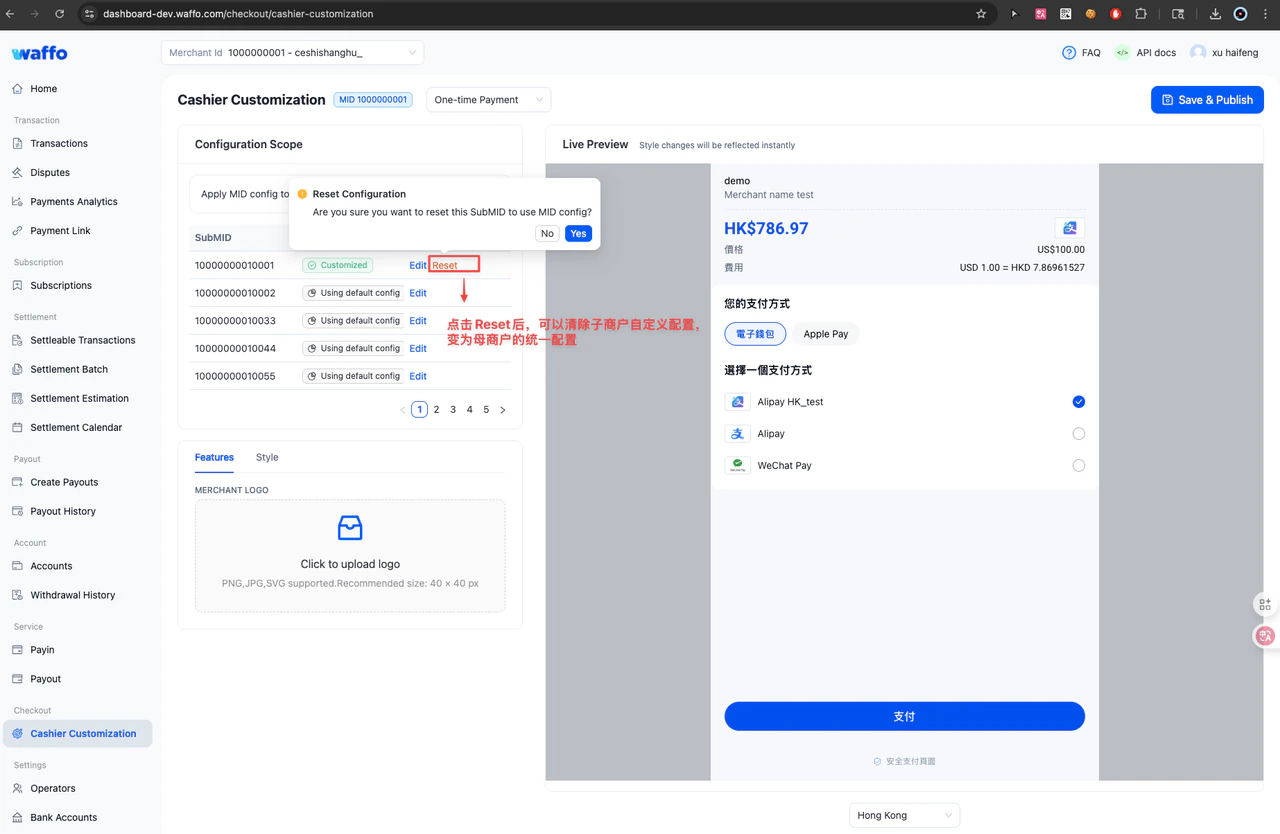
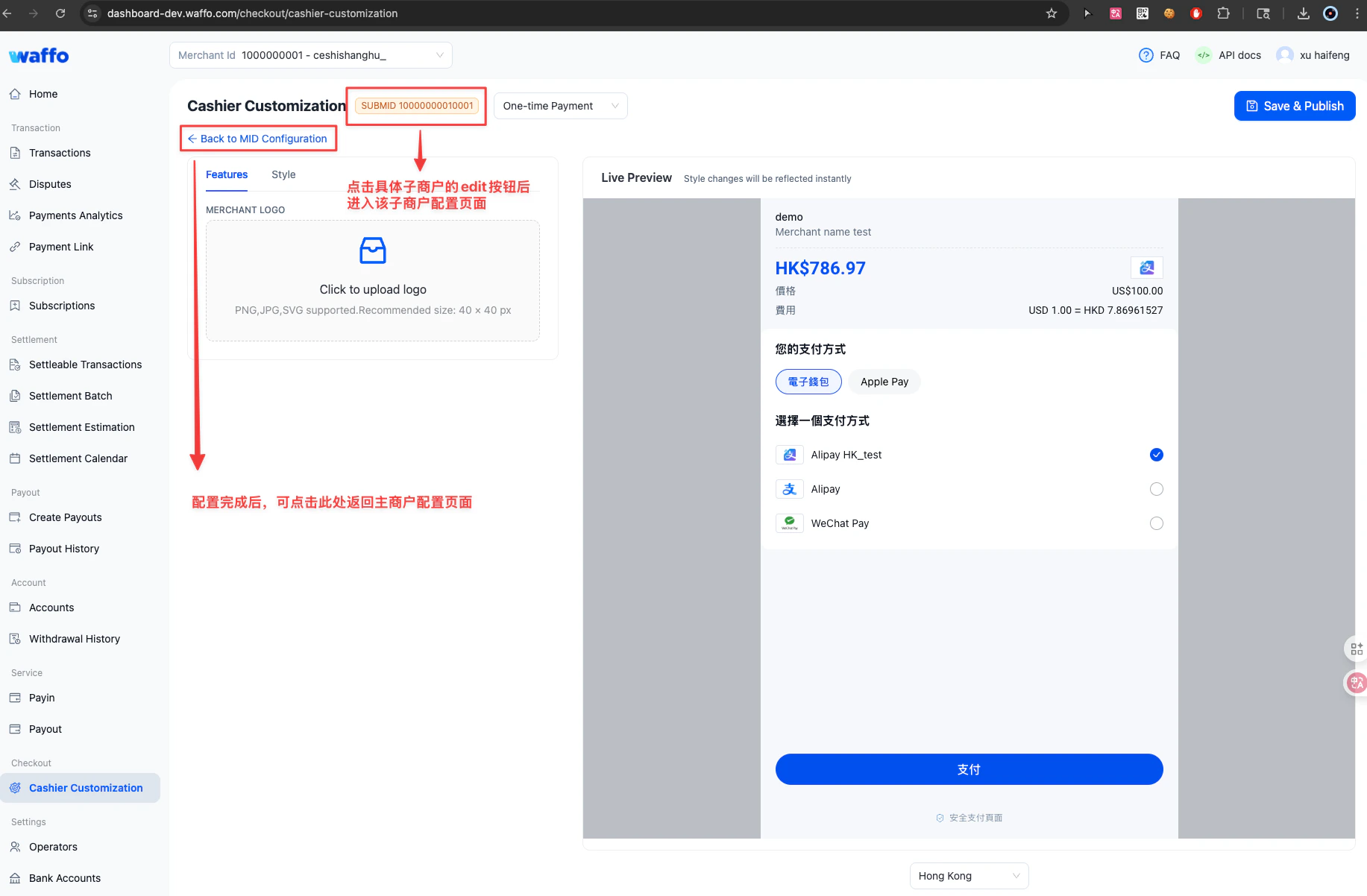 To restore a sub-merchant to the main merchant configuration, click **Reset** in the sub-merchant list and confirm.
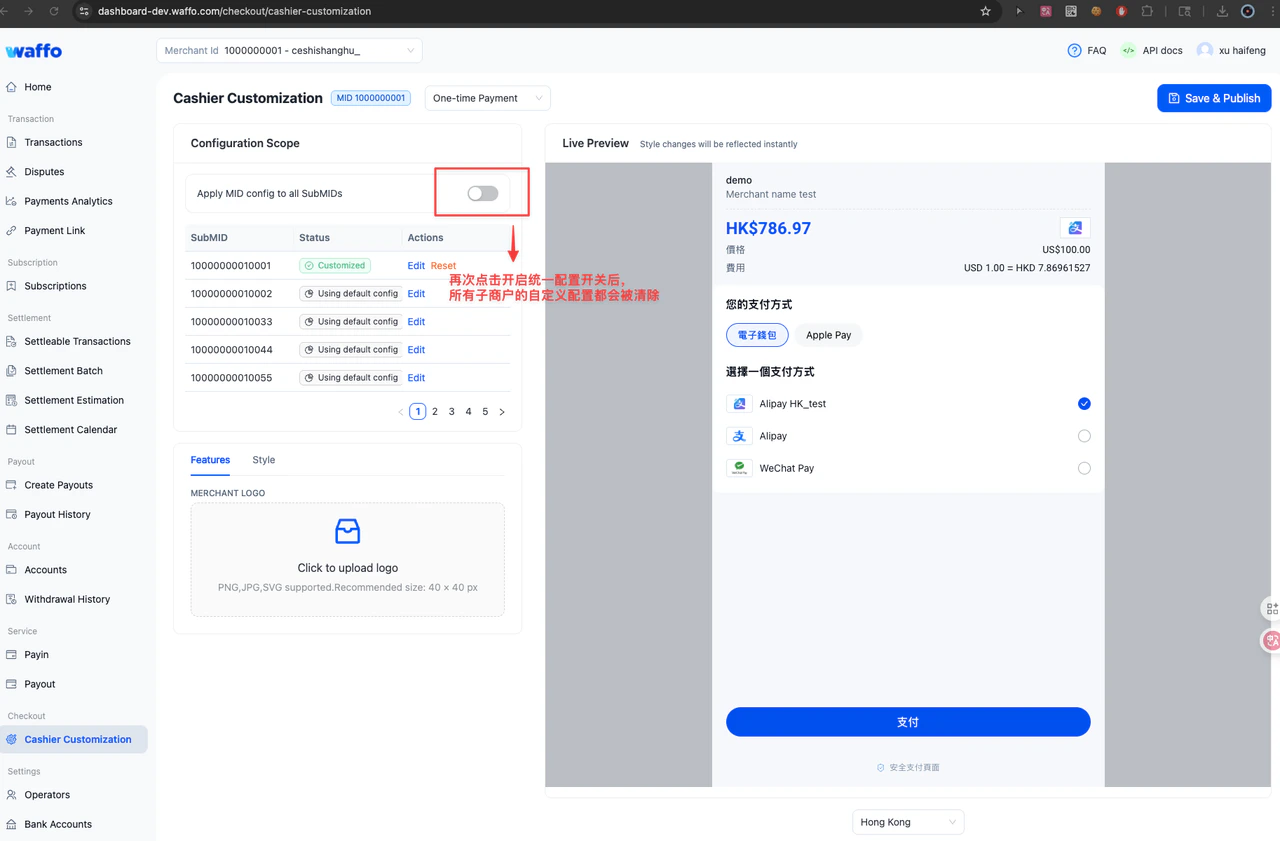
 If you enable unified configuration again, existing sub-merchant custom styles are cleared and all sub-merchants use the main merchant configuration again.
 ## Save and publish
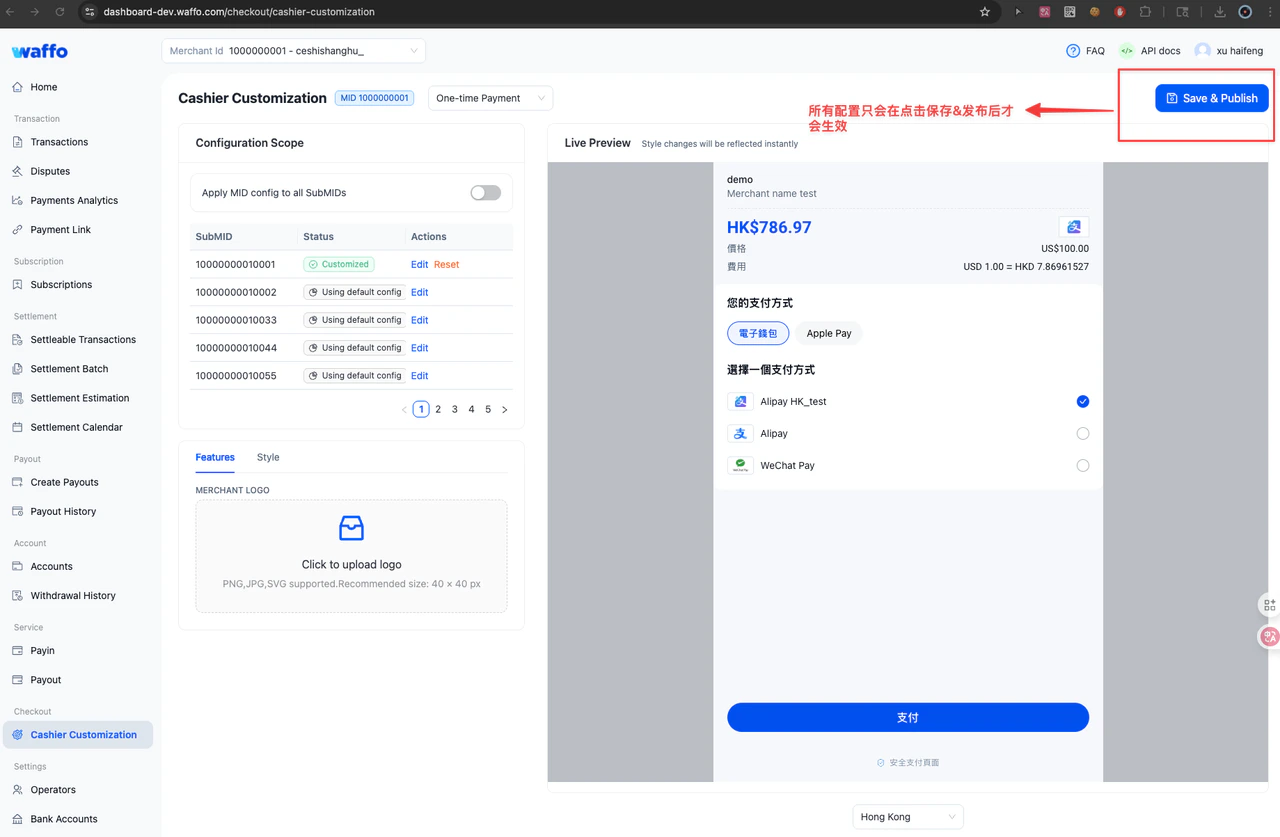
Changes on the page apply only to the current preview. They are not automatically applied to real orders.
After you click **Save & Publish**:
1. The current configuration is saved.
2. Newly created orders use the latest configuration.
If you update settings but do not click **Save & Publish**, real orders continue to use the last saved configuration.
## Save and publish
Changes on the page apply only to the current preview. They are not automatically applied to real orders.
After you click **Save & Publish**:
1. The current configuration is saved.
2. Newly created orders use the latest configuration.
If you update settings but do not click **Save & Publish**, real orders continue to use the last saved configuration.
 ## Permissions
| Role | View configuration | Modify and save |
| --------------- | ------------------ | --------------- |
| Super Admin | Supported | Supported |
| Admin | Supported | Supported |
| General | Supported | Not supported |
| Read-only | Supported | Not supported |
| Dev | Supported | Not supported |
| Dispute Manager | Not supported | Not supported |
## Permissions
| Role | View configuration | Modify and save |
| --------------- | ------------------ | --------------- |
| Super Admin | Supported | Supported |
| Admin | Supported | Supported |
| General | Supported | Not supported |
| Read-only | Supported | Not supported |
| Dev | Supported | Not supported |
| Dispute Manager | Not supported | Not supported |