> ## Documentation Index
> Fetch the complete documentation index at: https://waffo.com/docs/llms.txt
> Use this file to discover all available pages before exploring further.
# Google Pay™
Google Pay is a convenient payment system that allows customers to make payments in your app or website using any credit or debit card saved to their Google Account.
### Overview
Since Google devices are widely used in the countries where Waffo operates, supporting Google Pay in your app can help **simplify the checkout process and increase conversions**, as payment details are recovered from the customers' Google Accounts whenever they have previously saved or used their credit or debit cards with Google Pay.
To view the list of countries where Google Pay is supported, please see [Countries or regions where you can make payments with Google](https://support.google.com/pay/answer/9023773?hl=en).
### Payment flow
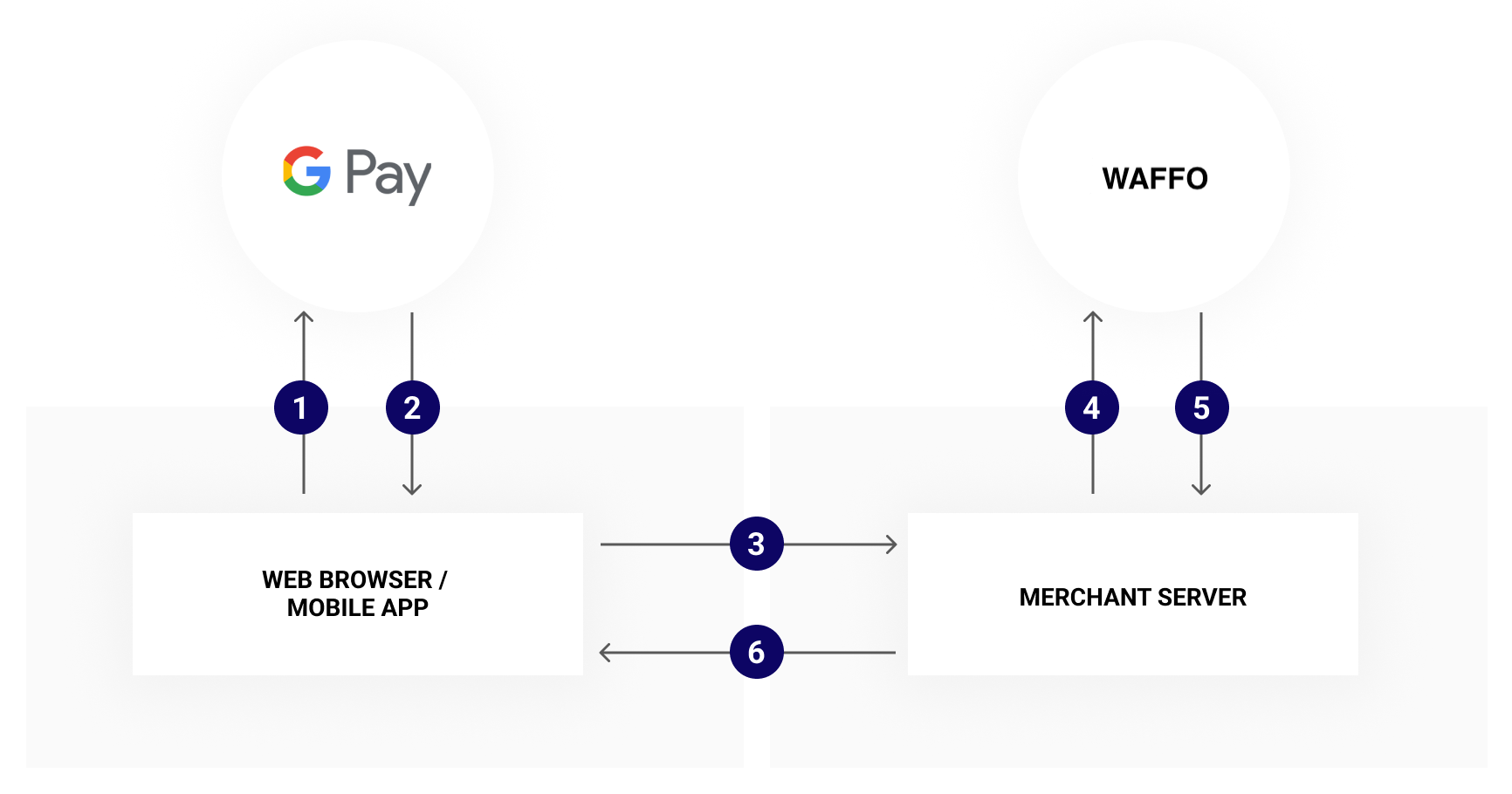 1. The customer clicks on the Google Pay button in the merchant's client, whether it is an online store or app. The merchant initiates the Google Pay request using the Google Pay Web API or Android SDK.
2. After the customer selects his payment method or provides his payment details, Google replies with a token.
3. The merchant's client submits this information to the merchant's backend.
4. In the payment request to Waffo, the merchant includes the token received in step 2.
5. Waffo processes the payment using the Google Pay token and returns the payment confirmation to the merchant.
6. The merchant then notifies the customer that the payment has been successful.
### Integration
* **For web integration**, please see the [Google Pay / Web documentation](https://developers.google.com/pay/api/web/guides/setup), along with the [Web integration checklist](https://developers.google.com/pay/api/web/guides/test-and-deploy/integration-checklist) and [Web brand guidelines](https://developers.google.com/pay/api/web/guides/brand-guidelines).
* **For Android / SDK integration**, please see the [Google Pay / Android documentation](https://developers.google.com/pay/api/android/guides/setup), along with the [Android integration checklist](https://developers.google.com/pay/api/android/guides/test-and-deploy/integration-checklist) and [Android brand guidelines](https://developers.google.com/pay/api/android/guides/brand-guidelines).
**Required information**
When performing this step use the following parameters:
* **gatewayMerchantId** -- You can obtain this value from your TAM \* **gateway** - use waffo as the parameter value
Required fields: name, address, phone, and email.
**Required document information**
Please, remember to **also request the user's personal ID document** before or after the user clicks on the Google Pay button and sends it to Waffo in the **payer** object, as this is a requirement for payment.
**Supported** **Payment Method**
* For supported payment type, select **CARD**. The following card networks are currently supported: VISA MASTERCARD AMEX DISCOVER For supported authentication methods use **PAN\_ONLY**.
You will need to submit a request via the [https://api.waffo.com/api/v1/order/create](https://api.waffo.com/api/v1/order/create) endpoint using the following parameter values:
Example request body
```json theme={null}
{
"orderAmount": "100",
"orderCurrency": "KRW",
"paymentInfo": {
"payMethodName": "GOOGLEPAY",
"payMethodType": "CARD"
},
"userInfo": {
"userId": "123456",
"userFirstName": "Ricardo"
},
"card": {
"gpay_token": {
"signature": "MEQCIBllBeoYFjIvIjPZmYG..."
}
},
"order_id": "657434343",
"notification_url": "http://merchant.com/notifications"
}
```
* **paymentInfo.payMethodType** should be **CARD**.
* **card.gpay\_token** should be the JSON obtained in the Google Integration step. It is important to send a JSON object and not a string in this parameter.
Example response body
```json theme={null}
{
"code": "0",
"msg": "Success",
"data": {
"merchantOrderId": "2023081001",
"orderStatus": "Success"
}
}
```
For billing address parameters, please see the [BillingAddress](https://developers.google.com/pay/api/web/reference/request-objects#BillingAddressParameters).
### Getting ready to go live
After you have completed all the necessary steps of the integration process in the testing environment, please make sure you have requested [Google Production Access](https://services.google.com/fb/forms/googlepayAPIenable), as detailed in the Google [Web](https://developers.google.com/pay/api/web/guides/test-and-deploy/request-prod-access) and [Android](https://developers.google.com/pay/api/web/guides/test-and-deploy/request-prod-access) documentation, and have updated your [Google integration configuration](https://docs.dlocal.com/docs/google-pay#step-1---google-integration-span-classpill-primaryfrontendspan) for Production environment access.
Finally, ensure you have contacted your Technical Account Manager so that we can help check everything has been correctly configured and confirm you are ready to go live.
For more information, please see [Acceptable Use Policy](https://payments.developers.google.com/terms/aup) and [Google Pay API Terms of Service](https://payments.developers.google.com/terms/sellertos).
## Waffo Payment Page Integration
Integrate Google Pay on your Waffo Payment Page by contacting our Support Team and specify the following:
* The website domain from which you wish to process Google Pay payments.
* The Merchant IDs to be enabled for processing Google Pay Payments.
Once this is set up, the **Buy with G Pay** button becomes visible on the Waffo Payment Page to eligible customers.
Google Pay transactions that are working in real PAN mode must comply with the 3D-Secure [SCA](https://docs.nuvei.com/?p=2006#strong-customer-authentication) mandate. If *3D-Secure* applies to your market region, contact Waffo to enable *3D-Secure* on your merchant account.
After your customer presses the G Pay button, Waffo takes care of the rest.
1. The customer clicks on the Google Pay button in the merchant's client, whether it is an online store or app. The merchant initiates the Google Pay request using the Google Pay Web API or Android SDK.
2. After the customer selects his payment method or provides his payment details, Google replies with a token.
3. The merchant's client submits this information to the merchant's backend.
4. In the payment request to Waffo, the merchant includes the token received in step 2.
5. Waffo processes the payment using the Google Pay token and returns the payment confirmation to the merchant.
6. The merchant then notifies the customer that the payment has been successful.
### Integration
* **For web integration**, please see the [Google Pay / Web documentation](https://developers.google.com/pay/api/web/guides/setup), along with the [Web integration checklist](https://developers.google.com/pay/api/web/guides/test-and-deploy/integration-checklist) and [Web brand guidelines](https://developers.google.com/pay/api/web/guides/brand-guidelines).
* **For Android / SDK integration**, please see the [Google Pay / Android documentation](https://developers.google.com/pay/api/android/guides/setup), along with the [Android integration checklist](https://developers.google.com/pay/api/android/guides/test-and-deploy/integration-checklist) and [Android brand guidelines](https://developers.google.com/pay/api/android/guides/brand-guidelines).
**Required information**
When performing this step use the following parameters:
* **gatewayMerchantId** -- You can obtain this value from your TAM \* **gateway** - use waffo as the parameter value
Required fields: name, address, phone, and email.
**Required document information**
Please, remember to **also request the user's personal ID document** before or after the user clicks on the Google Pay button and sends it to Waffo in the **payer** object, as this is a requirement for payment.
**Supported** **Payment Method**
* For supported payment type, select **CARD**. The following card networks are currently supported: VISA MASTERCARD AMEX DISCOVER For supported authentication methods use **PAN\_ONLY**.
You will need to submit a request via the [https://api.waffo.com/api/v1/order/create](https://api.waffo.com/api/v1/order/create) endpoint using the following parameter values:
Example request body
```json theme={null}
{
"orderAmount": "100",
"orderCurrency": "KRW",
"paymentInfo": {
"payMethodName": "GOOGLEPAY",
"payMethodType": "CARD"
},
"userInfo": {
"userId": "123456",
"userFirstName": "Ricardo"
},
"card": {
"gpay_token": {
"signature": "MEQCIBllBeoYFjIvIjPZmYG..."
}
},
"order_id": "657434343",
"notification_url": "http://merchant.com/notifications"
}
```
* **paymentInfo.payMethodType** should be **CARD**.
* **card.gpay\_token** should be the JSON obtained in the Google Integration step. It is important to send a JSON object and not a string in this parameter.
Example response body
```json theme={null}
{
"code": "0",
"msg": "Success",
"data": {
"merchantOrderId": "2023081001",
"orderStatus": "Success"
}
}
```
For billing address parameters, please see the [BillingAddress](https://developers.google.com/pay/api/web/reference/request-objects#BillingAddressParameters).
### Getting ready to go live
After you have completed all the necessary steps of the integration process in the testing environment, please make sure you have requested [Google Production Access](https://services.google.com/fb/forms/googlepayAPIenable), as detailed in the Google [Web](https://developers.google.com/pay/api/web/guides/test-and-deploy/request-prod-access) and [Android](https://developers.google.com/pay/api/web/guides/test-and-deploy/request-prod-access) documentation, and have updated your [Google integration configuration](https://docs.dlocal.com/docs/google-pay#step-1---google-integration-span-classpill-primaryfrontendspan) for Production environment access.
Finally, ensure you have contacted your Technical Account Manager so that we can help check everything has been correctly configured and confirm you are ready to go live.
For more information, please see [Acceptable Use Policy](https://payments.developers.google.com/terms/aup) and [Google Pay API Terms of Service](https://payments.developers.google.com/terms/sellertos).
## Waffo Payment Page Integration
Integrate Google Pay on your Waffo Payment Page by contacting our Support Team and specify the following:
* The website domain from which you wish to process Google Pay payments.
* The Merchant IDs to be enabled for processing Google Pay Payments.
Once this is set up, the **Buy with G Pay** button becomes visible on the Waffo Payment Page to eligible customers.
Google Pay transactions that are working in real PAN mode must comply with the 3D-Secure [SCA](https://docs.nuvei.com/?p=2006#strong-customer-authentication) mandate. If *3D-Secure* applies to your market region, contact Waffo to enable *3D-Secure* on your merchant account.
After your customer presses the G Pay button, Waffo takes care of the rest.
 ## Google Pay (Web SDK)
This guide provides steps to integrate Google Pay as a Waffo alternative payment method (APM) into your payment flow using the Waffo Web SDK platform.
**Prerequisites and Notes**
* This guide assumes you have completed all account setup prerequisites, and are ready to integrate *Google Pay* into your payment flow.
* Use these gateway credentials in requests:
* For the test (sandbox) environment: `gatewayMerchantId`: "**googletest**"
* For the production environment: `gatewayMerchantId`: You can obtain this value from your TAM
* The Google Pay Web environment must be set up according to the Google Pay guidelines:
* [Google Pay Web Developer Documentation](https://developers.google.com/pay/api/web)
* [Google Pay Brand Promoting Guidelines](https://developers.google.com/pay/api/web/guides/brand-guidelines)
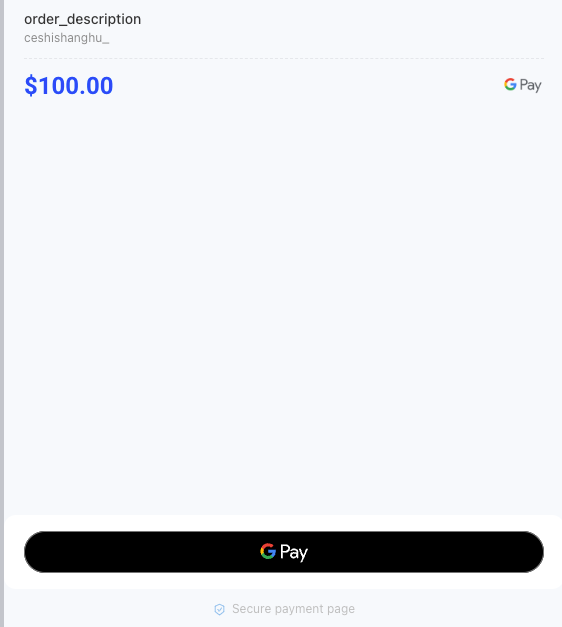
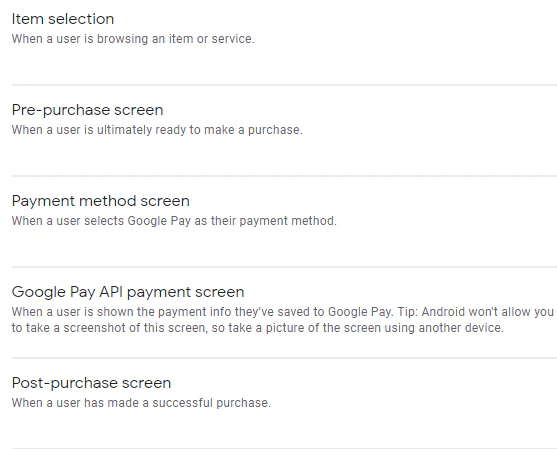
For your domain to be verified with Google, the merchant must send Waffo's Integration Team screenshots (like the one shown below) of your payment flow along with your domain URL:
## Google Pay (Web SDK)
This guide provides steps to integrate Google Pay as a Waffo alternative payment method (APM) into your payment flow using the Waffo Web SDK platform.
**Prerequisites and Notes**
* This guide assumes you have completed all account setup prerequisites, and are ready to integrate *Google Pay* into your payment flow.
* Use these gateway credentials in requests:
* For the test (sandbox) environment: `gatewayMerchantId`: "**googletest**"
* For the production environment: `gatewayMerchantId`: You can obtain this value from your TAM
* The Google Pay Web environment must be set up according to the Google Pay guidelines:
* [Google Pay Web Developer Documentation](https://developers.google.com/pay/api/web)
* [Google Pay Brand Promoting Guidelines](https://developers.google.com/pay/api/web/guides/brand-guidelines)
For your domain to be verified with Google, the merchant must send Waffo's Integration Team screenshots (like the one shown below) of your payment flow along with your domain URL:
 * [Google Pay Test Card Suite](https://developers.google.com/pay/api/web/guides/resources/test-card-suite)
* [Google Pay Web Integration Checklist](https://developers.google.com/pay/api/web/guides/test-and-deploy/integration-checklist)
Only some information in the pages listed are relevant to Waffo integration. Other information is relevant only for merchants performing a direct Google Pay integration, without Waffo.
* The Google account used for testing should be linked to a relevant test card:
* Google Pay provides test cards, see [Google Pay Test Card Suite](https://developers.google.com/pay/api/web/guides/resources/test-card-suite) for details.
* Google Pay supports recurring payments only if you (the merchant) conforms to the following policies:
* The merchant must comply with the network rules, especially the **merchant-initiated transactions (MIT)** rules.
* The merchant must disclose the "Terms of payment" within the Merchant's "buyflow", and the customer must accept the "Terms of payment".
* Before using Web SDK for non-3D payments, contact Waffo Support and have them configure your account for the non-3D payment flow.
An example of the full Google Pay Web SDK integration can be viewed, run and customize in the JSFiddle demonstration environment.
Follow the instructions in these steps:
1. Initiate a Session
This authenticates and sets up an order in the Waffo system, by sending an */openOrder* request, and returns a **sessionToken**.
2. Initialize the Web SDK
This instantiates the Web SDK with the **sessionToken** received from the server call to */openOrder*.
3. Get APM Details (optional)
Perform this is an optional step if you want to retrieve a list of APMs for the customer to choose a payment method. (If you already have the relevant APM details then there is no need to perform this step.)
1. Create the Google Pay UI button according to the instructions in the Google Pay for Web Payments [Brand Guidelines Guide](https://developers.google.com/pay/api/web/guides/brand-guidelines).
2. On your payment page, define the **tokenizationSpecification** constant as shown below. (When the customer presses the Google Pay button, this parameter identifies your gateway and your site's gateway merchant identifier.)
**Example tokenizationSpecification Request**
```js theme={null}
const tokenizationSpecification = {
type: "PAYMENT_GATEWAY",
parameters: {
gateway: "waffo",
gatewayMerchantId: "googletest", //'googletest' for test
},
}
```
In some mobile browsers, Google Pay is not "transparent". **The IFrame containing Google Pay must have an extra attribute with "feature policy allow"="payment", such as:** {''}.
Pressing the Google Pay button collects your customer's card details and returns them to you as an encrypted *Google Pay token*.
1. The customer triggers the Google Pay payment flow by pressing the Google Pay button.
At this point, your customer may be asked to log in to their Google Pay account.
1. Google Pay displays all the cards associated with the customer's Google account, or asks the customer to "Add new credit or debit card" details.
2. The customer selects a payment method and Google Pay returns the encrypted *Google Pay token* (containing the **paymentMethod** class in JSON format).
Press [here](https://developers.google.com/pay/api/android/guides/resources/payment-data-cryptography) to see more information regarding payment data cryptography.
The Web SDK createPayment() method manages end-to-end card payment processing, including any 3D-Secure or PCI requirements.
Send a createPayment() request with the **paymentOption.card.externalToken** parameters:
* **externalTokenProvider**: "**GooglePay**"
* **mobileToken**: "**{''}**"
**Example createPayment() Request**
```js theme={null}
sfc.createPayment({
sessionToken: "", // received from openOrder API
merchantId: "", // as assigned by Waffo
merchantSiteId: "", // as assigned by Waffo
clientUniqueId: "", // optional
paymentOption: {
card: {
externalToken: {
externalTokenProvider: "GooglePay",
mobileToken: ""
}
}
},
billingAddress: {
email: "john.smith@email.com",
county: "US"
},
function(res) {
console.log(res)
if (res.cancelled === true) {
example.querySelector(".token").innerText = "cancelled";
} else {
example.querySelector(".token").innerText = res.transactionStatus + " - Reference: "res.transactionId;
}
example.classList.add("submitted");
}
});
Example createPayment() Response
{
"result": "APPROVED",
"errCode": 0,
"errorDescription": "",
"userPaymentOptionId": "14958143",
"ccCardNumber": "5****5761",
"bin": "511142",
"last4Digits": "5761",
"ccExpMonth": "09",
"ccExpYear": "21",
"transactionId": "1110000000004146935",
"threeDReason": "",
"threeDReasonId": "",
"challengeCancelReasonId": "",
"challengeCancelReason": "",
"isLiabilityOnIssuer": "1",
"challengePreferenceReason": "12",
"cancelled": false
}
```
The merchant can control 3D flow via Web SDK by adding **googlePay3Dflow** to the **paymentOption** class in createPayment(). When sending **googlePay3Dflow**=**enable** (default), Web SDK processes the card transaction with 3D-Secure verification; when sending **googlePay3Dflow**=**disable**, Web SDK processes the card transaction as a non-3D Google Pay transaction.
**googlePay3Dflow** overrides **force3D** only for Google Pay.
**Example createPayment() request with googlePay3Dflow**
```js theme={null}
sfc.createPayment({
sessionToken: "", // received from openOrder API
merchantId: "", // as assigned by Waffo
merchantSiteId: "", // as assigned by Waffo
clientUniqueId: "", // optional
paymentOption: {
card: {
externalToken: {
externalTokenProvider: "GooglePay",
mobileToken: ""
}
}
},
googlePay3Dflow: "enable", //default value is enable
billingAddress: {
email: "john.smith@email.com",
county: "US"
},
function(res) {
console.log(res)
if (res.cancelled === true) {
example.querySelector(".token").innerText = "cancelled";
} else {
example.querySelector(".token").innerText = res.transactionStatus + " - Reference: "res.transactionId;
}
example.classList.add("submitted");
}
});
```
You can use the JSFiddle demonstration environment to view, run and customize this Google Pay Web SDK example:
**JavaScript**
```js theme={null}
var show = function (elem) {
elem.classList.add('is-visible');
};
var hide = function (elem) {
elem.classList.add('is-hide');
};
let allowCreditCards = true;
let allowPrepaidCards = false;
const allowedCardAuthMethods = ["PAN_ONLY", "CRYPTOGRAM_3DS"];
const allowedCardNetworks = ["AMEX", "DISCOVER", "INTERAC", "JCB", "MASTERCARD", "VISA"];
let assuranceDetailsRequired = false;
let billingAddressParameters = {
format: "MIN",
phoneNumberRequired: false
};
let billingAddressRequired = false;
let checkoutOption = "COMPLETE_IMMEDIATE_PURCHASE";
let gateway = "waffo";
let gatewayMerchantId = "googletest";
let googleMerchantId = "";// You can obtain this value from your TAM
let merchantName = "Google Pay webSDK";
let tokenizationType = "PAYMENT_GATEWAY"; // Мlet totalPriceStatus = "FINAL";
let googlePayEnv = 'TEST' // 'TEST' or 'PRODUCTION'let country = 'DE';
let currency = "EUR";
let amount = '115.2'const baseCardPaymentMethod = {
type: 'CARD',
parameters: {
allowedAuthMethods: allowedCardAuthMethods,
allowedCardNetworks: allowedCardNetworks,
allowCreditCards: allowCreditCards,
allowPrepaidCards: allowPrepaidCards,
assuranceDetailsRequired: assuranceDetailsRequired,
billingAddressRequired: billingAddressRequired,
billingAddressParameters: billingAddressParameters,
}
};
function getGoogleTransactionInfo() {
return {
countryCode: country,
currencyCode: currency,
totalPriceStatus: totalPriceStatus,
totalPrice: amount,
checkoutOption: checkoutOption
};
}
const tokenizationSpecification = {
type: tokenizationType,
parameters: {
'gateway': gateway,
'gatewayMerchantId': gatewayMerchantId
}
};
function getGooglePaymentDataRequest() {
const paymentDataRequest = Object.assign({}, baseRequest);
paymentDataRequest.allowedPaymentMethods = [cardPaymentMethod];
paymentDataRequest.transactionInfo = getGoogleTransactionInfo();
paymentDataRequest.merchantInfo = {
// @todo a merchant ID is available for a production environment after approval by Google// See {@link https://developers.google.com/pay/api/web/guides/test-and-deploy/integration-checklist|Integration checklist}merchantId: googleMerchantId,
merchantName: merchantName
};
return paymentDataRequest;
}
const baseRequest = {
apiVersion: 2,
apiVersionMinor: 0
};
const cardPaymentMethod = Object.assign({},
baseCardPaymentMethod, {
tokenizationSpecification: tokenizationSpecification
}
);
let paymentsClient = null;
function getGoogleIsReadyToPayRequest() {
return Object.assign({},
baseRequest, {
allowedPaymentMethods: [baseCardPaymentMethod]
}
);
}
function getGooglePaymentsClient() {
if (paymentsClient === null) {
paymentsClient = new google.payments.api.PaymentsClient({
environment: googlePayEnv
});
}
return paymentsClient;
}
function onGooglePayLoaded() {
const paymentsClient = getGooglePaymentsClient();
paymentsClient.isReadyToPay(getGoogleIsReadyToPayRequest())
.then(function(response) {
if (response.result) {
addGooglePayButton();
}
})
.catch(function(err) {
console.error(err);
});
}
function addGooglePayButton() {
const paymentsClient = getGooglePaymentsClient();
const button =
paymentsClient.createButton({
onClick: onGooglePaymentButtonClicked
});
document.getElementById('googlePayContainer').appendChild(button);
}
function prefetchGooglePaymentData() {
const paymentDataRequest = getGooglePaymentDataRequest();
paymentDataRequest.transactionInfo = {
totalPriceStatus: 'NOT_CURRENTLY_KNOWN',
currencyCode: currency
};
const paymentsClient = getGooglePaymentsClient();
paymentsClient.prefetchPaymentData(paymentDataRequest);
}
function onGooglePaymentButtonClicked() {
const paymentDataRequest = getGooglePaymentDataRequest();
paymentDataRequest.transactionInfo = getGoogleTransactionInfo();
const paymentsClient = getGooglePaymentsClient();
paymentsClient.loadPaymentData(paymentDataRequest)
.then(function(paymentData) {
processPayment(paymentData);
})
.catch(function(err) {
console.error(err);
});
}
function processPayment(paymentData) {
console.log(paymentData);
payWithGooglePay(paymentData);
paymentToken = paymentData.paymentMethodData.tokenizationData.token;
}
function payWithGooglePay(paymentToken) {
window.sfc.createPayment({
sessionToken : document.getElementById('session').value,
merchantId : document.getElementById('metchantID').value, //as asigned by SafeChargemerchantSiteId : document.getElementById('metchantSiteID').value,
cardHolderName: 'CL-BRW1',
"paymentOption":{
"card":{
"externalToken":{
"externalTokenProvider":"GooglePay",
"mobileToken": JSON.stringify(paymentToken.paymentMethodData),
}
}
},
"userDetails": {
"firstName": "first_name",
"lastName": "last_name",
"email": "goole@pay.com",
"phone": "phone"
},
"shippingAddress": {
"address": "address",
"city": "city",
"country": "DE",
"state": "",
"zip": "1340"
},
"billingAddress": {
"email": "asd@asdasd.com",
"address": "NØRREGADE 2",
"city": "city",
"country": "DE",
"state": "",
"zip": "1335"
},
}, function (crRes) {
console.log(crRes);
})
}
function initSDK() {
hide(document.getElementsByClassName('webSDK-placeholder')[0]);
show(document.getElementsByClassName('toggle-content')[0]);
var sessionToken = document.getElementById('session').value;
var sfc = SafeCharge({
env: 'int',
merchantId: document.getElementById('metchantID').value,
merchantSiteId: document.getElementById('metchantSiteID').value
});
window.sfc = sfc
onGooglePayLoaded()
}
```
**HTML**
```html theme={null}
Test
```
**CSS**
```css theme={null}
html {
min-height: 1000px;
}
.container {
display: flex;
flex-wrap: wrap;
order: 2;
justify-content: left;
}
.result-container {
display: flex;
flex-wrap: wrap;
order: 2;
justify-content: left;
height: auto;
margin-top: 200px;
}
#result {
flex: 0 100%;
margin-top: 1rem;
background-color: #3a4453;
color: #fff;
font-size: 12px;
}
.inputFields {
margin-left: 40px;
}
.item {
/* flex: 0 48%; */
height: 100%;
margin-bottom: 2%; /* (100-32*3)/2 */
padding-right: 15px;
}
.item100 {
flex: 0 100%;
height: 50px;
margin-top: 0%;
margin-bottom: 2%; /* (100-32*3)/2 */
justify-content: center;
}
.toggle-content,
.is-hide {
display: none;
}
.toggle-content.is-visible {
display: block;
}
.webSDK-placeholder {
height: 20rem;
}
input {
background: #ffffff;
border-radius: 3px;
border: 1px solid #d3dce6;
color: #4a5568;
display: block;
outline: none;
padding: 5px 12px;
width: 360px;
font-family:
Nunito Sans,
sans-serif;
font-size: 14px;
}
input:placeholder-shown {
border: 1px solid #d3dce6;
}
input:hover {
border: 1px solid #95aac1;
}
input:focus {
border: 1px solid #493daa;
}
#card-field-placeholder,
#card-number,
#card-expiry,
#card-cvc {
background: #ffffff;
border-radius: 3px;
border: 1px solid #d3dce6;
color: #4a5568;
display: block;
margin-top: 5px;
outline: none;
padding: 7px 12px;
width: 360px;
}
#card_number_three_fields {
margin-top: 5px;
padding: 7px 12px;
width: 470px;
}
.init-button,
.pay-button {
background-color: #493daa;
border-radius: 3px;
border: 1px solid #382f7e;
color: #fff;
font-size: 14px;
font-weight: 400;
height: 36px;
line-height: 20px;
margin-top: 16px;
margin-bottom: 10px;
width: 140px;
}
.init-button:hover,
.pay-button:hover {
color: #fff;
background-color: #382f7e;
border: 1px solid #493daa;
cursor: pointer;
}
#sightline-placeholder {
height: auto;
}
.validation-error {
color: #e30045;
font-size: 12px;
height: 16px;
line-height: 16px;
visibility: hidden;
}
label {
color: #4a5568;
font-size: 14px;
font-weight: 600;
}
#card_number {
width: 700px;
}
#cardholder_name {
width: 470px;
}
#card-field-placeholder.sfc-focus,
#card-number.focused,
#card-expiry.focused,
#card-cvc.focused {
border: 1px solid #493daa;
}
#card-field-placeholder.sfc-focus,
#card-number:hover,
#card-expiry:hover,
#card-cvc:hover {
border: 1px solid #95aac1;
}
button,
input,
optgroup,
select,
textarea {
margin: 0;
font-family: inherit;
font-size: inherit;
line-height: inherit;
}
body {
font-family:
Nunito Sans,
Roboto,
sans-serif;
font-size: 14px;
font-weight: 400;
color: #4a5568;
line-height: 1.8;
}
#apms label {
display: flex;
align-items: baseline;
flex-direction: row;
}
#apms label input {
width: 50px;
}
.sfcModal-header {
height: 1.5rem;
}
.sfcModal-dialog {
margin: 55px auto;
max-width: 492px;
position: relative;
width: auto;
}
.sfcModal-content {
background-clip: padding-box;
background-color: #ffffff;
border: 1px solid #dfdfdf;
outline: 0;
position: relative;
}
.sfcModal-close {
border: 0;
color: #2c2a2a;
cursor: pointer;
font-size: 0.9rem;
padding: 0;
position: absolute;
right: 0.5rem;
top: 0.4rem;
}
.sfcIcon--close:before {
content: "\2716";
}
```
* [Google Pay Test Card Suite](https://developers.google.com/pay/api/web/guides/resources/test-card-suite)
* [Google Pay Web Integration Checklist](https://developers.google.com/pay/api/web/guides/test-and-deploy/integration-checklist)
Only some information in the pages listed are relevant to Waffo integration. Other information is relevant only for merchants performing a direct Google Pay integration, without Waffo.
* The Google account used for testing should be linked to a relevant test card:
* Google Pay provides test cards, see [Google Pay Test Card Suite](https://developers.google.com/pay/api/web/guides/resources/test-card-suite) for details.
* Google Pay supports recurring payments only if you (the merchant) conforms to the following policies:
* The merchant must comply with the network rules, especially the **merchant-initiated transactions (MIT)** rules.
* The merchant must disclose the "Terms of payment" within the Merchant's "buyflow", and the customer must accept the "Terms of payment".
* Before using Web SDK for non-3D payments, contact Waffo Support and have them configure your account for the non-3D payment flow.
An example of the full Google Pay Web SDK integration can be viewed, run and customize in the JSFiddle demonstration environment.
Follow the instructions in these steps:
1. Initiate a Session
This authenticates and sets up an order in the Waffo system, by sending an */openOrder* request, and returns a **sessionToken**.
2. Initialize the Web SDK
This instantiates the Web SDK with the **sessionToken** received from the server call to */openOrder*.
3. Get APM Details (optional)
Perform this is an optional step if you want to retrieve a list of APMs for the customer to choose a payment method. (If you already have the relevant APM details then there is no need to perform this step.)
1. Create the Google Pay UI button according to the instructions in the Google Pay for Web Payments [Brand Guidelines Guide](https://developers.google.com/pay/api/web/guides/brand-guidelines).
2. On your payment page, define the **tokenizationSpecification** constant as shown below. (When the customer presses the Google Pay button, this parameter identifies your gateway and your site's gateway merchant identifier.)
**Example tokenizationSpecification Request**
```js theme={null}
const tokenizationSpecification = {
type: "PAYMENT_GATEWAY",
parameters: {
gateway: "waffo",
gatewayMerchantId: "googletest", //'googletest' for test
},
}
```
In some mobile browsers, Google Pay is not "transparent". **The IFrame containing Google Pay must have an extra attribute with "feature policy allow"="payment", such as:** {''}.
Pressing the Google Pay button collects your customer's card details and returns them to you as an encrypted *Google Pay token*.
1. The customer triggers the Google Pay payment flow by pressing the Google Pay button.
At this point, your customer may be asked to log in to their Google Pay account.
1. Google Pay displays all the cards associated with the customer's Google account, or asks the customer to "Add new credit or debit card" details.
2. The customer selects a payment method and Google Pay returns the encrypted *Google Pay token* (containing the **paymentMethod** class in JSON format).
Press [here](https://developers.google.com/pay/api/android/guides/resources/payment-data-cryptography) to see more information regarding payment data cryptography.
The Web SDK createPayment() method manages end-to-end card payment processing, including any 3D-Secure or PCI requirements.
Send a createPayment() request with the **paymentOption.card.externalToken** parameters:
* **externalTokenProvider**: "**GooglePay**"
* **mobileToken**: "**{''}**"
**Example createPayment() Request**
```js theme={null}
sfc.createPayment({
sessionToken: "", // received from openOrder API
merchantId: "", // as assigned by Waffo
merchantSiteId: "", // as assigned by Waffo
clientUniqueId: "", // optional
paymentOption: {
card: {
externalToken: {
externalTokenProvider: "GooglePay",
mobileToken: ""
}
}
},
billingAddress: {
email: "john.smith@email.com",
county: "US"
},
function(res) {
console.log(res)
if (res.cancelled === true) {
example.querySelector(".token").innerText = "cancelled";
} else {
example.querySelector(".token").innerText = res.transactionStatus + " - Reference: "res.transactionId;
}
example.classList.add("submitted");
}
});
Example createPayment() Response
{
"result": "APPROVED",
"errCode": 0,
"errorDescription": "",
"userPaymentOptionId": "14958143",
"ccCardNumber": "5****5761",
"bin": "511142",
"last4Digits": "5761",
"ccExpMonth": "09",
"ccExpYear": "21",
"transactionId": "1110000000004146935",
"threeDReason": "",
"threeDReasonId": "",
"challengeCancelReasonId": "",
"challengeCancelReason": "",
"isLiabilityOnIssuer": "1",
"challengePreferenceReason": "12",
"cancelled": false
}
```
The merchant can control 3D flow via Web SDK by adding **googlePay3Dflow** to the **paymentOption** class in createPayment(). When sending **googlePay3Dflow**=**enable** (default), Web SDK processes the card transaction with 3D-Secure verification; when sending **googlePay3Dflow**=**disable**, Web SDK processes the card transaction as a non-3D Google Pay transaction.
**googlePay3Dflow** overrides **force3D** only for Google Pay.
**Example createPayment() request with googlePay3Dflow**
```js theme={null}
sfc.createPayment({
sessionToken: "", // received from openOrder API
merchantId: "", // as assigned by Waffo
merchantSiteId: "", // as assigned by Waffo
clientUniqueId: "", // optional
paymentOption: {
card: {
externalToken: {
externalTokenProvider: "GooglePay",
mobileToken: ""
}
}
},
googlePay3Dflow: "enable", //default value is enable
billingAddress: {
email: "john.smith@email.com",
county: "US"
},
function(res) {
console.log(res)
if (res.cancelled === true) {
example.querySelector(".token").innerText = "cancelled";
} else {
example.querySelector(".token").innerText = res.transactionStatus + " - Reference: "res.transactionId;
}
example.classList.add("submitted");
}
});
```
You can use the JSFiddle demonstration environment to view, run and customize this Google Pay Web SDK example:
**JavaScript**
```js theme={null}
var show = function (elem) {
elem.classList.add('is-visible');
};
var hide = function (elem) {
elem.classList.add('is-hide');
};
let allowCreditCards = true;
let allowPrepaidCards = false;
const allowedCardAuthMethods = ["PAN_ONLY", "CRYPTOGRAM_3DS"];
const allowedCardNetworks = ["AMEX", "DISCOVER", "INTERAC", "JCB", "MASTERCARD", "VISA"];
let assuranceDetailsRequired = false;
let billingAddressParameters = {
format: "MIN",
phoneNumberRequired: false
};
let billingAddressRequired = false;
let checkoutOption = "COMPLETE_IMMEDIATE_PURCHASE";
let gateway = "waffo";
let gatewayMerchantId = "googletest";
let googleMerchantId = "";// You can obtain this value from your TAM
let merchantName = "Google Pay webSDK";
let tokenizationType = "PAYMENT_GATEWAY"; // Мlet totalPriceStatus = "FINAL";
let googlePayEnv = 'TEST' // 'TEST' or 'PRODUCTION'let country = 'DE';
let currency = "EUR";
let amount = '115.2'const baseCardPaymentMethod = {
type: 'CARD',
parameters: {
allowedAuthMethods: allowedCardAuthMethods,
allowedCardNetworks: allowedCardNetworks,
allowCreditCards: allowCreditCards,
allowPrepaidCards: allowPrepaidCards,
assuranceDetailsRequired: assuranceDetailsRequired,
billingAddressRequired: billingAddressRequired,
billingAddressParameters: billingAddressParameters,
}
};
function getGoogleTransactionInfo() {
return {
countryCode: country,
currencyCode: currency,
totalPriceStatus: totalPriceStatus,
totalPrice: amount,
checkoutOption: checkoutOption
};
}
const tokenizationSpecification = {
type: tokenizationType,
parameters: {
'gateway': gateway,
'gatewayMerchantId': gatewayMerchantId
}
};
function getGooglePaymentDataRequest() {
const paymentDataRequest = Object.assign({}, baseRequest);
paymentDataRequest.allowedPaymentMethods = [cardPaymentMethod];
paymentDataRequest.transactionInfo = getGoogleTransactionInfo();
paymentDataRequest.merchantInfo = {
// @todo a merchant ID is available for a production environment after approval by Google// See {@link https://developers.google.com/pay/api/web/guides/test-and-deploy/integration-checklist|Integration checklist}merchantId: googleMerchantId,
merchantName: merchantName
};
return paymentDataRequest;
}
const baseRequest = {
apiVersion: 2,
apiVersionMinor: 0
};
const cardPaymentMethod = Object.assign({},
baseCardPaymentMethod, {
tokenizationSpecification: tokenizationSpecification
}
);
let paymentsClient = null;
function getGoogleIsReadyToPayRequest() {
return Object.assign({},
baseRequest, {
allowedPaymentMethods: [baseCardPaymentMethod]
}
);
}
function getGooglePaymentsClient() {
if (paymentsClient === null) {
paymentsClient = new google.payments.api.PaymentsClient({
environment: googlePayEnv
});
}
return paymentsClient;
}
function onGooglePayLoaded() {
const paymentsClient = getGooglePaymentsClient();
paymentsClient.isReadyToPay(getGoogleIsReadyToPayRequest())
.then(function(response) {
if (response.result) {
addGooglePayButton();
}
})
.catch(function(err) {
console.error(err);
});
}
function addGooglePayButton() {
const paymentsClient = getGooglePaymentsClient();
const button =
paymentsClient.createButton({
onClick: onGooglePaymentButtonClicked
});
document.getElementById('googlePayContainer').appendChild(button);
}
function prefetchGooglePaymentData() {
const paymentDataRequest = getGooglePaymentDataRequest();
paymentDataRequest.transactionInfo = {
totalPriceStatus: 'NOT_CURRENTLY_KNOWN',
currencyCode: currency
};
const paymentsClient = getGooglePaymentsClient();
paymentsClient.prefetchPaymentData(paymentDataRequest);
}
function onGooglePaymentButtonClicked() {
const paymentDataRequest = getGooglePaymentDataRequest();
paymentDataRequest.transactionInfo = getGoogleTransactionInfo();
const paymentsClient = getGooglePaymentsClient();
paymentsClient.loadPaymentData(paymentDataRequest)
.then(function(paymentData) {
processPayment(paymentData);
})
.catch(function(err) {
console.error(err);
});
}
function processPayment(paymentData) {
console.log(paymentData);
payWithGooglePay(paymentData);
paymentToken = paymentData.paymentMethodData.tokenizationData.token;
}
function payWithGooglePay(paymentToken) {
window.sfc.createPayment({
sessionToken : document.getElementById('session').value,
merchantId : document.getElementById('metchantID').value, //as asigned by SafeChargemerchantSiteId : document.getElementById('metchantSiteID').value,
cardHolderName: 'CL-BRW1',
"paymentOption":{
"card":{
"externalToken":{
"externalTokenProvider":"GooglePay",
"mobileToken": JSON.stringify(paymentToken.paymentMethodData),
}
}
},
"userDetails": {
"firstName": "first_name",
"lastName": "last_name",
"email": "goole@pay.com",
"phone": "phone"
},
"shippingAddress": {
"address": "address",
"city": "city",
"country": "DE",
"state": "",
"zip": "1340"
},
"billingAddress": {
"email": "asd@asdasd.com",
"address": "NØRREGADE 2",
"city": "city",
"country": "DE",
"state": "",
"zip": "1335"
},
}, function (crRes) {
console.log(crRes);
})
}
function initSDK() {
hide(document.getElementsByClassName('webSDK-placeholder')[0]);
show(document.getElementsByClassName('toggle-content')[0]);
var sessionToken = document.getElementById('session').value;
var sfc = SafeCharge({
env: 'int',
merchantId: document.getElementById('metchantID').value,
merchantSiteId: document.getElementById('metchantSiteID').value
});
window.sfc = sfc
onGooglePayLoaded()
}
```
**HTML**
```html theme={null}
Test
```
**CSS**
```css theme={null}
html {
min-height: 1000px;
}
.container {
display: flex;
flex-wrap: wrap;
order: 2;
justify-content: left;
}
.result-container {
display: flex;
flex-wrap: wrap;
order: 2;
justify-content: left;
height: auto;
margin-top: 200px;
}
#result {
flex: 0 100%;
margin-top: 1rem;
background-color: #3a4453;
color: #fff;
font-size: 12px;
}
.inputFields {
margin-left: 40px;
}
.item {
/* flex: 0 48%; */
height: 100%;
margin-bottom: 2%; /* (100-32*3)/2 */
padding-right: 15px;
}
.item100 {
flex: 0 100%;
height: 50px;
margin-top: 0%;
margin-bottom: 2%; /* (100-32*3)/2 */
justify-content: center;
}
.toggle-content,
.is-hide {
display: none;
}
.toggle-content.is-visible {
display: block;
}
.webSDK-placeholder {
height: 20rem;
}
input {
background: #ffffff;
border-radius: 3px;
border: 1px solid #d3dce6;
color: #4a5568;
display: block;
outline: none;
padding: 5px 12px;
width: 360px;
font-family:
Nunito Sans,
sans-serif;
font-size: 14px;
}
input:placeholder-shown {
border: 1px solid #d3dce6;
}
input:hover {
border: 1px solid #95aac1;
}
input:focus {
border: 1px solid #493daa;
}
#card-field-placeholder,
#card-number,
#card-expiry,
#card-cvc {
background: #ffffff;
border-radius: 3px;
border: 1px solid #d3dce6;
color: #4a5568;
display: block;
margin-top: 5px;
outline: none;
padding: 7px 12px;
width: 360px;
}
#card_number_three_fields {
margin-top: 5px;
padding: 7px 12px;
width: 470px;
}
.init-button,
.pay-button {
background-color: #493daa;
border-radius: 3px;
border: 1px solid #382f7e;
color: #fff;
font-size: 14px;
font-weight: 400;
height: 36px;
line-height: 20px;
margin-top: 16px;
margin-bottom: 10px;
width: 140px;
}
.init-button:hover,
.pay-button:hover {
color: #fff;
background-color: #382f7e;
border: 1px solid #493daa;
cursor: pointer;
}
#sightline-placeholder {
height: auto;
}
.validation-error {
color: #e30045;
font-size: 12px;
height: 16px;
line-height: 16px;
visibility: hidden;
}
label {
color: #4a5568;
font-size: 14px;
font-weight: 600;
}
#card_number {
width: 700px;
}
#cardholder_name {
width: 470px;
}
#card-field-placeholder.sfc-focus,
#card-number.focused,
#card-expiry.focused,
#card-cvc.focused {
border: 1px solid #493daa;
}
#card-field-placeholder.sfc-focus,
#card-number:hover,
#card-expiry:hover,
#card-cvc:hover {
border: 1px solid #95aac1;
}
button,
input,
optgroup,
select,
textarea {
margin: 0;
font-family: inherit;
font-size: inherit;
line-height: inherit;
}
body {
font-family:
Nunito Sans,
Roboto,
sans-serif;
font-size: 14px;
font-weight: 400;
color: #4a5568;
line-height: 1.8;
}
#apms label {
display: flex;
align-items: baseline;
flex-direction: row;
}
#apms label input {
width: 50px;
}
.sfcModal-header {
height: 1.5rem;
}
.sfcModal-dialog {
margin: 55px auto;
max-width: 492px;
position: relative;
width: auto;
}
.sfcModal-content {
background-clip: padding-box;
background-color: #ffffff;
border: 1px solid #dfdfdf;
outline: 0;
position: relative;
}
.sfcModal-close {
border: 0;
color: #2c2a2a;
cursor: pointer;
font-size: 0.9rem;
padding: 0;
position: absolute;
right: 0.5rem;
top: 0.4rem;
}
.sfcIcon--close:before {
content: "\2716";
}
```