> ## Documentation Index
> Fetch the complete documentation index at: https://waffo.com/docs/llms.txt
> Use this file to discover all available pages before exploring further.
# 沙盒与测试
> 在沙盒环境中完成完整的集成测试,无需真实资金。
## 环境信息
| 环境 | Base URL | 说明 |
| ---------- | ------------------------------- | ---------- |
| Sandbox | `https://api-sandbox.waffo.com` | 测试环境,无真实扣款 |
| Production | `https://api.waffo.com` | 生产环境 |
SDK 通过 `Environment.SANDBOX` / `Environment.PRODUCTION` 切换,无需手动修改 URL。
## 测试卡号
### 信用卡(Credit Card)
#### CC\_VISA
| 卡号 | 结果 |
| ------------------ | ---- |
| `4576750000000110` | 支付成功 |
| `4576750000000220` | 支付失败 |
#### CC\_MASTERCARD
| 卡号 | 结果 |
| ------------------ | ---- |
| `2226900000000110` | 支付成功 |
| `2226900000000220` | 支付失败 |
#### CC\_JCB
| 卡号 | 结果 |
| ------------------ | ---- |
| `3528000000000214` | 支付成功 |
| `3528000000120006` | 支付失败 |
#### CC\_AMEX
| 卡号 | 结果 |
| ------------------ | ---- |
| `3400000000000216` | 支付成功 |
| `340000000200027` | 支付失败 |
### 借记卡(Debit Card)
#### DC\_VISA
| 卡号 | 结果 |
| ------------------ | ---- |
| `4001700000000110` | 支付成功 |
| `4001700000000220` | 支付失败 |
#### DC\_MASTERCARD
| 卡号 | 结果 |
| ------------------ | ---- |
| `2226930000000110` | 支付成功 |
| `2226930000000220` | 支付失败 |
#### DC\_JCB
| 卡号 | 结果 |
| ------------------ | ---- |
| `3088850000000116` | 支付成功 |
| `3088850000200004` | 支付失败 |
#### DC\_AMEX
| 卡号 | 结果 |
| ----------------- | ---- |
| `340034000100009` | 支付成功 |
| `340034000400003` | 支付失败 |
### 通用信息
有效期:任意未来日期
CVV:任意 3 位数字(AMEX 为 4 位)
## 沙盒模拟器
沙盒不连接真实渠道,通过模拟器直接控制支付结果:
* **一次性支付**:创建订单后打开收银台页面,页面上直接提供"支付成功"和"支付失败"按钮,点击即可触发对应结果和 Webhook
* **订阅首期**:与一次性支付相同,在收银台页面操作
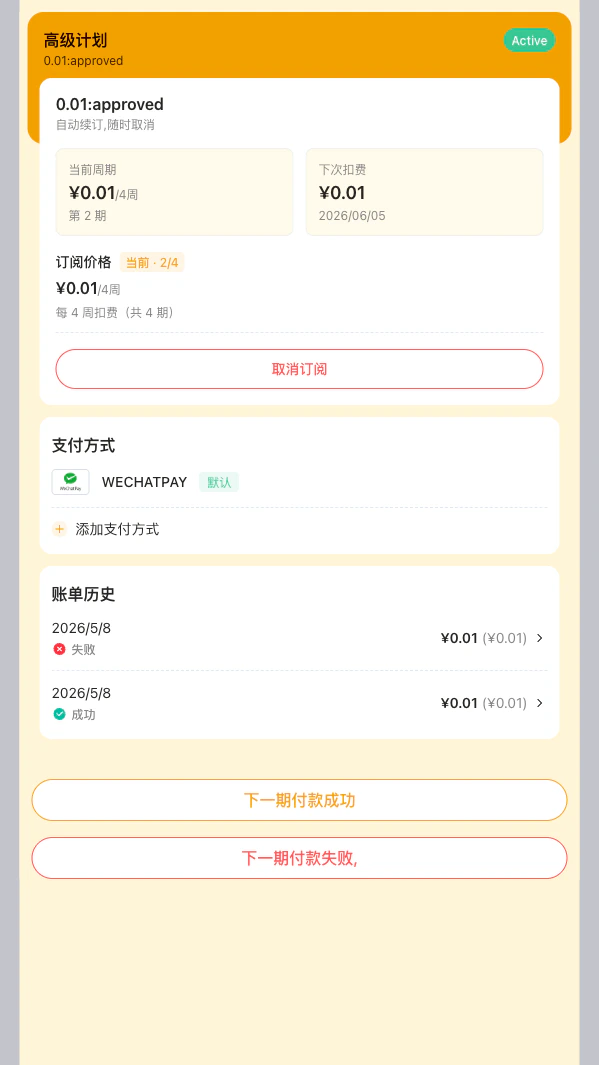
* **订阅续费模拟**:调用 `POST /api/v1/subscription/manage` 获取管理页 URL → 打开管理页 → 页面上有"模拟下期支付成功"和"模拟下期支付失败"按钮,每次点击模拟一期续费
订阅续费管理页示例:
 ## 支付方式测试方法
部分支付方式需要在普通沙盒支付测试之外完成专门检查。
### 八达通测试
如果你需要使用八达通测试 App 完成扫码支付测试,请参考 [八达通沙箱测试支付](/docs/zh/developer-docs/tools-and-references/developer-tools/octopus-sandbox-e2e)。
### Google Pay 测试
如果你的集成需要在收银台或自建前端中展示 Google Pay,请完成以下检查。
1. 使用一个 Google Pay 测试账号登录。
2. 将该账号加入 [Google Pay test mode stub data 测试卡组](https://groups.google.com/g/googlepay-test-mode-stub-data)。
3. 确认目标国家或地区在 [Google Pay 支持国家列表](https://support.google.com/googlepay/answer/12429287?hl=en-GB#zippy=) 中。
4. 如果在 Android App WebView 中加载支付页,按 [Google Pay Android WebView 指南](https://developers.google.com/pay/api/android/guides/recipes/using-android-webview#groovy) 增加 WebView 配置。
5. 生产环境上线前,Android App 需要按 [Google Pay 发布指南](https://developers.google.com/pay/api/android/guides/test-and-deploy/publish-your-integration) 申请 API 权限。
6. 如果生产环境未完成权限申请,用户可能看到 `OR_BIBED_11` 或类似错误提示。
申请生产权限时,网关类型选择 Gateway。提交材料后,如需加速审批,请将 Google 账号商户 MID 和 app name 提供给 Waffo 技术对接群。
### Apple Pay 测试
如果你的集成需要在收银台或自建前端中展示 Apple Pay,请完成以下检查。
1. 推荐使用商户自己的 Apple Pay 账号完成测试。
2. 测试账号需绑定有效的 Visa、Mastercard 或 Amex 卡。
3. 暂不支持使用 UnionPay 卡进行 Apple Pay 测试。
4. 如出现 `Service unavailable`,请检查设备或账号的地区设置。
5. 使用网页端打开时可能需要全局代理;手机端通过支付链接唤起 Apple Pay 弹窗时,部分代理即可满足测试。
6. 上线前确认目标国家或地区在 [Apple Pay 支持国家列表](https://support.apple.com/en-gb/102775) 中。
## 测试 Webhook
沙盒环境支持 Webhook 回调。确保你的 `notifyUrl` 可从公网访问。本地开发推荐使用内网穿透工具(如 ngrok 或 cloudflared)。
沙盒和生产使用不同的 API Key 和 RSA 密钥。八达通、Apple Pay 和 Google Pay 还需要单独确认 App、账号、支持范围、WebView 限制或生产权限要求。
## 支付方式测试方法
部分支付方式需要在普通沙盒支付测试之外完成专门检查。
### 八达通测试
如果你需要使用八达通测试 App 完成扫码支付测试,请参考 [八达通沙箱测试支付](/docs/zh/developer-docs/tools-and-references/developer-tools/octopus-sandbox-e2e)。
### Google Pay 测试
如果你的集成需要在收银台或自建前端中展示 Google Pay,请完成以下检查。
1. 使用一个 Google Pay 测试账号登录。
2. 将该账号加入 [Google Pay test mode stub data 测试卡组](https://groups.google.com/g/googlepay-test-mode-stub-data)。
3. 确认目标国家或地区在 [Google Pay 支持国家列表](https://support.google.com/googlepay/answer/12429287?hl=en-GB#zippy=) 中。
4. 如果在 Android App WebView 中加载支付页,按 [Google Pay Android WebView 指南](https://developers.google.com/pay/api/android/guides/recipes/using-android-webview#groovy) 增加 WebView 配置。
5. 生产环境上线前,Android App 需要按 [Google Pay 发布指南](https://developers.google.com/pay/api/android/guides/test-and-deploy/publish-your-integration) 申请 API 权限。
6. 如果生产环境未完成权限申请,用户可能看到 `OR_BIBED_11` 或类似错误提示。
申请生产权限时,网关类型选择 Gateway。提交材料后,如需加速审批,请将 Google 账号商户 MID 和 app name 提供给 Waffo 技术对接群。
### Apple Pay 测试
如果你的集成需要在收银台或自建前端中展示 Apple Pay,请完成以下检查。
1. 推荐使用商户自己的 Apple Pay 账号完成测试。
2. 测试账号需绑定有效的 Visa、Mastercard 或 Amex 卡。
3. 暂不支持使用 UnionPay 卡进行 Apple Pay 测试。
4. 如出现 `Service unavailable`,请检查设备或账号的地区设置。
5. 使用网页端打开时可能需要全局代理;手机端通过支付链接唤起 Apple Pay 弹窗时,部分代理即可满足测试。
6. 上线前确认目标国家或地区在 [Apple Pay 支持国家列表](https://support.apple.com/en-gb/102775) 中。
## 测试 Webhook
沙盒环境支持 Webhook 回调。确保你的 `notifyUrl` 可从公网访问。本地开发推荐使用内网穿透工具(如 ngrok 或 cloudflared)。
沙盒和生产使用不同的 API Key 和 RSA 密钥。八达通、Apple Pay 和 Google Pay 还需要单独确认 App、账号、支持范围、WebView 限制或生产权限要求。