

Customization capabilities overview
Priority: API parameter > Merchant Portal > SDK initialization
When the same capability is configured through multiple methods, the higher-priority setting takes effect.
Payment method filtering
UsepayMethodType and payMethodName to control which payment methods are displayed in the cashier.
For payment method exceptions and App WebView / iframe limitations, see Payment method integration notes.
Recommended parameter combinations
Examples
When to pass payMethodCountry
Pass this field when you want the cashier to show payment methods for a specific country only.- Omitted: The cashier shows all payment methods available under the merchant contract across all countries.
- Passed: The cashier shows only the payment methods for that country.
Multi-currency support
When the merchant pricing currency differs from the user payment currency (cross-currency order):userCurrency can be omitted — Waffo automatically handles FX conversion. The user sees the amount in their local currency in the cashier.
Language settings
UsepaymentInfo.cashierLanguage to set the cashier display language (IETF BCP 47 format):
cashierLanguage is independent of the order currency and the user’s country or region. Waffo normalizes valid language tags to standard BCP 47 casing, such as en-us to en-US.
Auto-selection logic
WhencashierLanguage is not specified, Waffo selects the language automatically using the following priority:
- Use the highest-priority supported language in the browser’s
Accept-Languageheader - If the user selects a country or region tab other than
GLB, use the language mapped to that country or region - Otherwise, use the language mapped to the user’s IP country or region
- If no language matches, fall back to
en
q weight in Accept-Language. If that language is unsupported, Waffo continues with country or region selection.
Browser-language matching uses the primary language subtag: en, es, id, ja, ko, ms, pl, pt, th, tr, and vi match directly; any zh-* tag maps to zh. Other primary languages do not lock the cashier through browser matching, even when you can specify that language through cashierLanguage.
A language specified through cashierLanguage or matched from Accept-Language remains fixed during the cashier session. A language derived from a country or region changes when the user switches tabs. GLB has no mapped language, so Waffo uses the remaining conditions to select a language.
Country or region fallback uses these mappings:
Notes
- The order currency and user payment currency do not participate in cashier language selection.
cashierLanguagevalidates whether the language prefix and script are supported. The region only needs to be a valid ISO 3166-1 alpha-2 country or region code.- An unsupported language or script returns error code
A0026. - A language tag that does not follow IETF BCP 47 format returns error code
A0047.
To keep the cashier language fixed, explicitly pass
paymentInfo.cashierLanguage.Theme customization
Customize the cashier’s colors, fonts, and styles to match your brand.Three configuration methods
Priority order: API parameter > Merchant Portal > SDK initialization. When
cashierAppearance is passed via API it overrides all other settings.
Theme variables
These variables are injected into the cashier UI rendering layer and override the default theme. They affect the payment method selection page, card form page, transition page, and payment result page.
API parameter method
Supported endpoints:POST /api/v1/order/createPOST /api/v1/subscription/create
The
cashierAppearance field must be a JSON string (not a JSON object), with the structure {"variables": { ... }}. Escape the inner quotes accordingly.Merchant Portal configuration
Log in to Merchant Portal → Checkout → Cashier Customization to set a global default cashier style. Use this option when all transactions should share a unified brand style. Portal supports merchant Logo, preset themes, theme colors, base font size, and corner radius. You can preview the cashier on the right side of the page. After you click Save & Publish, the configuration applies to newly created orders.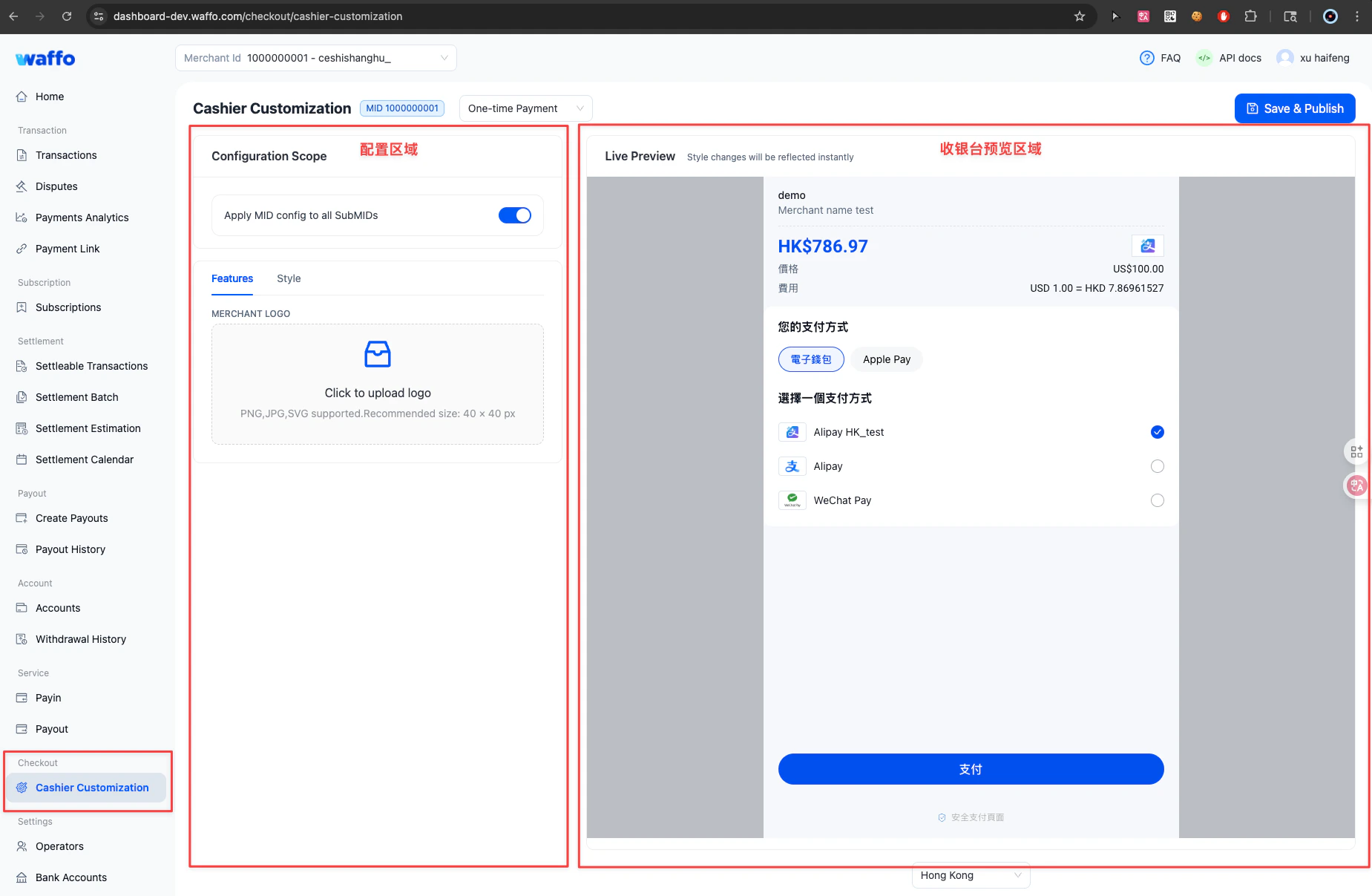
SDK initialization
Pass theme configuration when initializing the frontend SDK (@waffo/payment-sdk). This has the lowest priority and takes effect only when neither the API nor the Merchant Portal has a theme configured.
Merchant logo
Pass the merchant logo viabrandInfo.cashierLogoUrl to display your brand identity on the checkout page.
Two formats are supported:
API parameter examples
Using an external URL:Order expiration time
UseorderExpiredAt to set the order expiration time (ISO 8601, UTC+0).
Redirect URLs
Both HTTPS URLs and deeplinks (e.g. for in-app scenarios) are supported.