

One-time payment simulation
1
Create an order
Call
POST /api/v1/order/create to create an order.2
Get the checkout URL
Retrieve the checkout URL from
orderAction in the response.3
Open the checkout page
Open the checkout page in your browser. Simulation buttons will be displayed on the page.
4
Select a payment result
Click the corresponding button to simulate a payment result:
- Payment succeeded — Simulates the user completing payment. The order status changes to
PAY_SUCCESS. - Payment failed — Simulates a declined payment. The order status changes to
ORDER_CLOSE.
PAYMENT_NOTIFICATION webhook to your notifyUrl.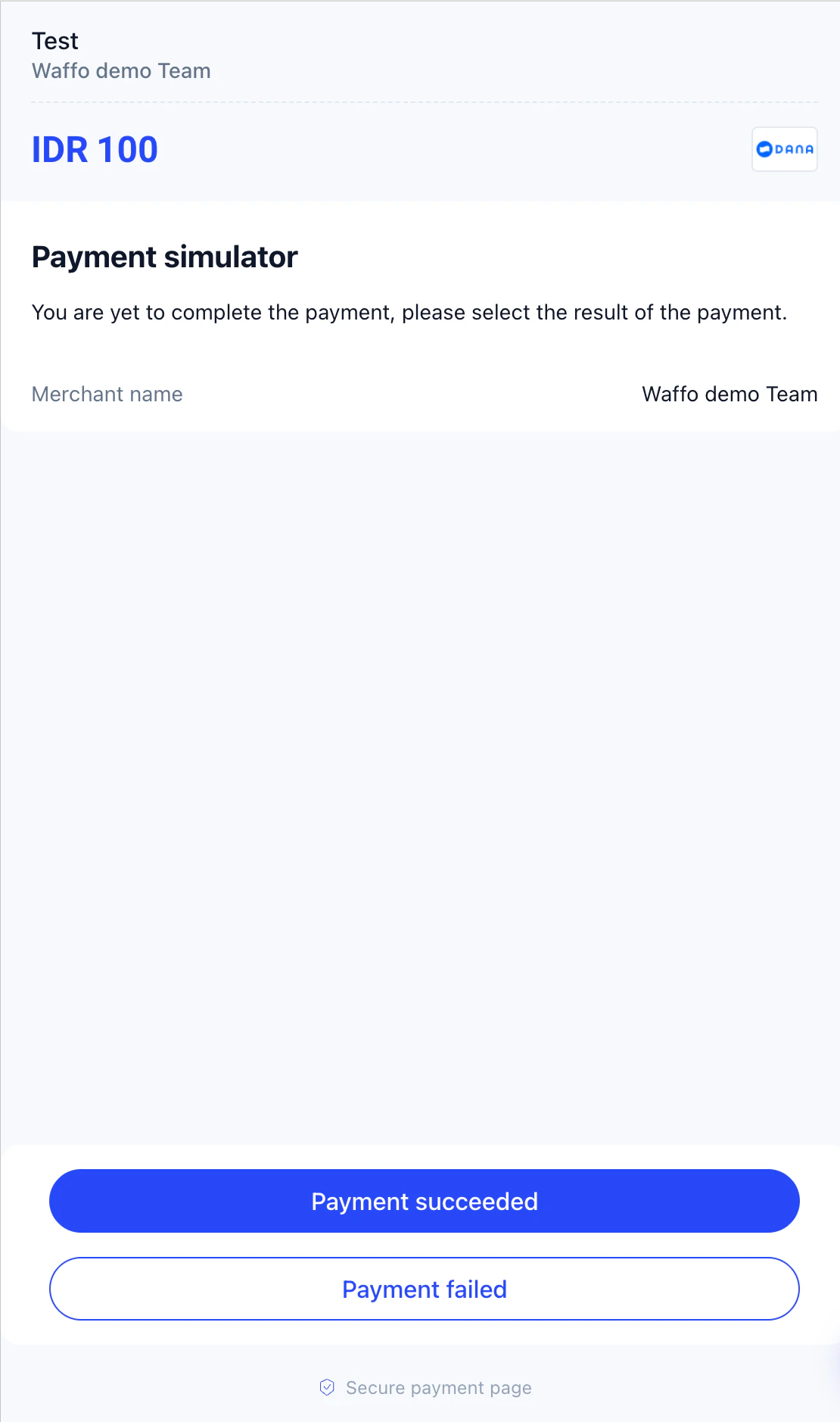
The sandbox checkout is a simulator interface — there is no real payment method selection or card number entry. The simulation flow is the same for all payment methods.
Subscription simulation
First payment
The first payment follows the same flow as a one-time payment:1
Create a subscription
Call
POST /api/v1/subscription/create to create a subscription.2
Open the checkout page
Retrieve the checkout URL from the response and open it in your browser.
3
Simulate the first payment
Click Payment succeeded or Payment failed. After a successful first payment, the subscription status changes to
ACTIVE and a SUBSCRIPTION_STATUS_NOTIFICATION is triggered.Simulate a renewal payment
After a subscription is activated, you can quickly test renewal without waiting for the real billing cycle to expire:1
Get the management page URL
Call
POST /api/v1/subscription/manage to retrieve the management page URL.2
Open the management page
Open the
managementUrl in your browser.3
Simulate a renewal result
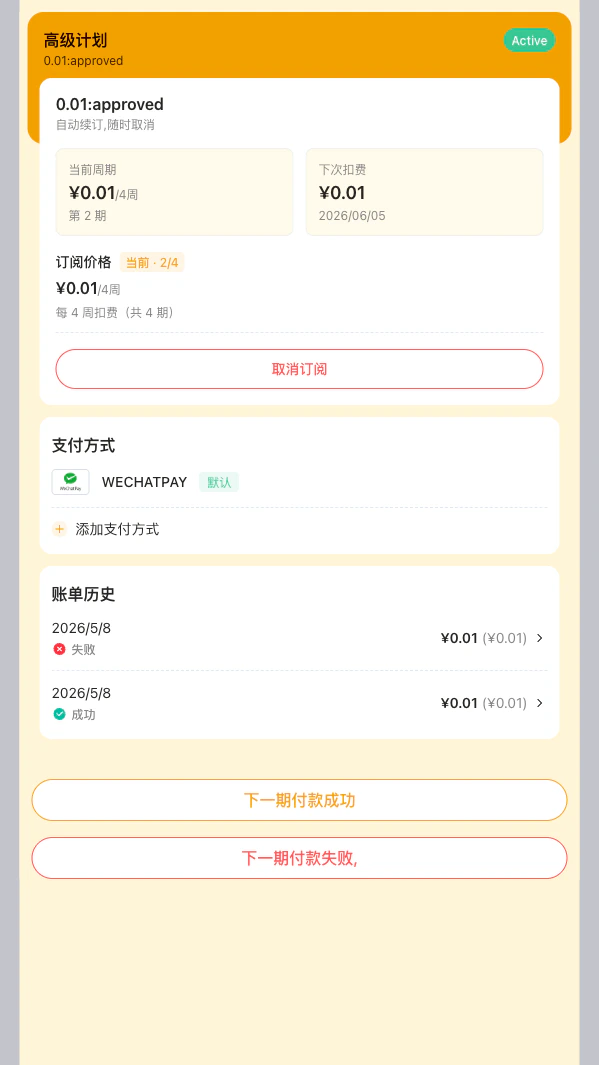
The management page displays two simulation buttons:
- Simulate next payment succeeded — Triggers a successful renewal. Sends a
PAYMENT_NOTIFICATIONand aSUBSCRIPTION_PERIOD_CHANGED_NOTIFICATION. - Simulate next payment failed — Triggers a failed renewal. Sends a
PAYMENT_NOTIFICATION(failed).
Each button click simulates one renewal period. You can click multiple times to test multi-period scenarios (for example, period 2 succeeds, period 3 fails).
Simulate subscription cancellation
The management page also supports user-initiated cancellation, which triggers aSUBSCRIPTION_STATUS_NOTIFICATION with the status changed to USER_CANCELLED.
Sandbox special amounts for exception simulation
The following values come from the current acceptance templates and can be used to quickly reproduce specific exceptions:- If you only want the normal success/failure flow, avoid these amounts.
A0011is not triggered by a special amount. It is triggered by reusing the same request ID with a different amount or currency.- Refund
A0003is not triggered by a special amount either. It happens when the refund amount exceeds the original paid amount.
Test card numbers
Credit cards
Debit cards
General information
- Expiry date: any future date
- CVV: any 3-digit number (4 digits for AMEX)