

Coupon must be enabled by Waffo for each environment. Before integrating, contact your Waffo business or technical support representative and provide the Merchant ID and target environment.
How it works
Supported scope
Configure Coupons in Merchant Portal
1
Enable Coupon
Ask Waffo to enable Coupon for your Sandbox or Production Merchant. Confirm each environment separately.
2
Create a Coupon
Log in to Merchant Portal, go to Marketing → Coupons, and configure the discount rule and scope as described below.
3
Create a Promotion Code
To let customers enter a redemption code, create a Promotion Code and link it to the Coupon. Create it from the Coupon details page, or create one or more codes from Marketing → Promotion Codes.
4
Set redemption rules
Configure redemption limits, first-transaction eligibility, minimum order amount, and expiration as needed, then save.
You cannot change the discount type, amount, or duration after creating the Coupon. Review these settings before creation. You can continue to edit Coupon Name and Metadata. Deactivate or archive a Coupon to stop using it.
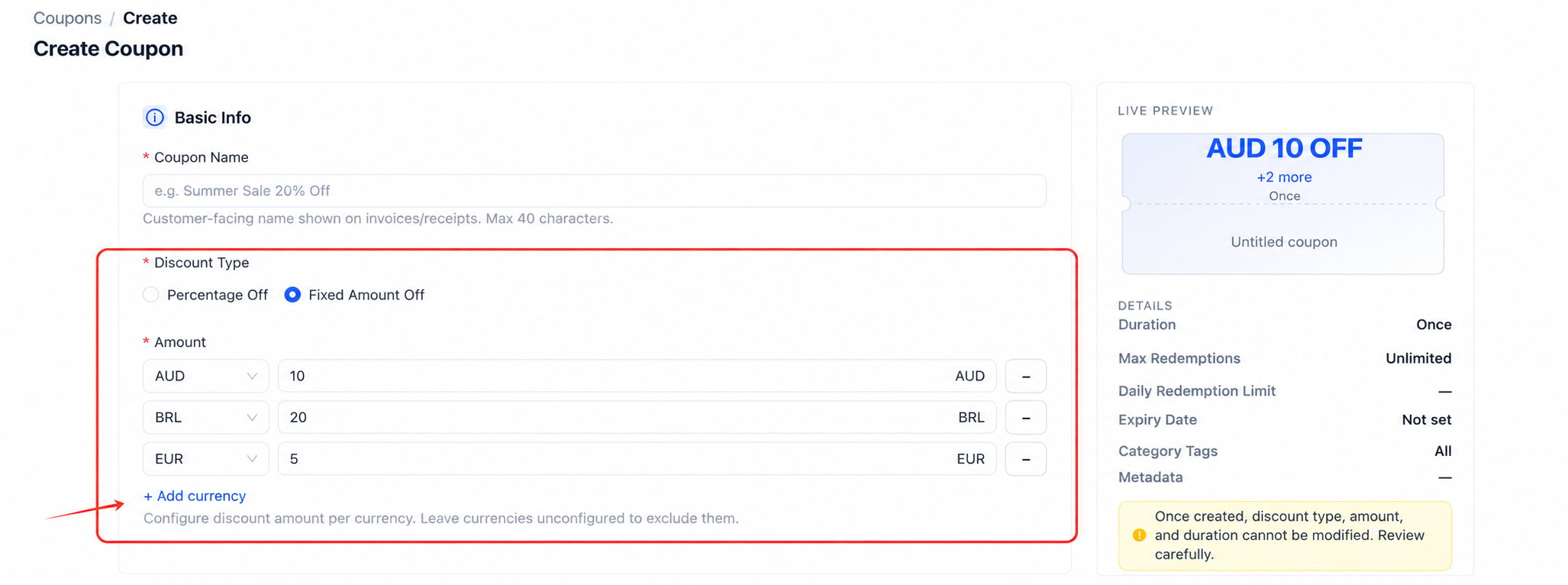
Configure a fixed discount amount for each supported currency.
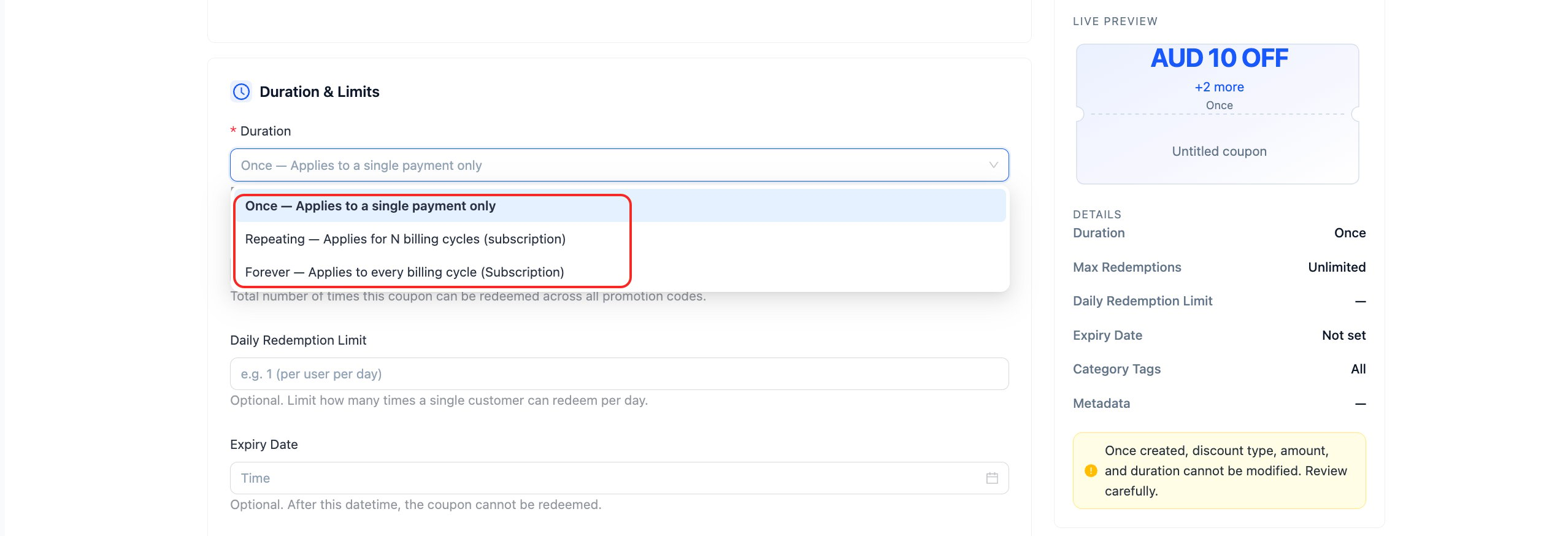
Duration controls whether the discount applies once, for specified billing periods, or for every Subscription billing period.
Apply a Coupon through the API
promotionInfo accepts two mutually exclusive fields:
Pass only one field in each request. Do not send
promotionCode and couponId together.
One-time payment
AddpromotionInfo to the POST /api/v1/order/create request, and pass either promotionCode or couponId:
- promotionCode
- couponId
orderAmount is the order amount before the discount. After Waffo validates the Coupon, it recalculates the payable amount. In a POST /api/v1/order/inquiry response, originalAmount is the pre-discount amount and orderAmount is the discounted Merchant order amount.
Subscription
AddpromotionInfo to a POST /api/v1/subscription/create or POST /api/v1/subscription/change request, and pass either promotionCode or couponId:
- promotionCode
- couponId
promotionInfo.
Let customers enter a Promotion Code in Waffo Checkout
To let a customer redeem a code, omitpromotionInfo when creating the one-time payment order. The customer can enter a Promotion Code after opening orderAction.webUrl.
- Waffo shows the input only when Coupon is enabled for the Merchant and no discount was applied during order creation.
- Checkout accepts a Promotion Code, not a
couponId. - Waffo validates the Promotion Code, then recalculates and displays the payable amount.
- An invalid, expired, ineligible, or fully redeemed Promotion Code is rejected. The order does not silently continue at full price.
- If the Merchant applied a Coupon through the API, Checkout displays the discounted amount and hides the Promotion Code input.
Refunds and payment results
- The maximum refundable amount is the discounted Merchant order amount, not the pre-discount amount.
- Treat the final state returned by a Webhook or inquiry endpoint as the payment result. Do not treat a browser redirect as proof of payment success.
- Store the
promotionCodeorcouponIdwith your business order or Subscription so you can reconcile and troubleshoot the discount.
Acceptance checklist
- Coupon is enabled for both Sandbox and the target Production Merchant.
- Authorized accounts can open Coupons and Promotion Codes in Merchant Portal and create and view records.
- One successful one-time payment uses
promotionCode, and another usescouponId; each request contains only one field. - A one-time payment without a pre-applied discount lets the customer enter a valid Promotion Code in Checkout and shows the recalculated amount.
- An invalid, expired, or ineligible Promotion Code shows an error and does not continue at full price.
- A Subscription create or change request applies a Coupon, and subsequent billing periods follow the configured Coupon duration.
- A Webhook or inquiry response confirms the final payment state. For a one-time payment,
originalAmountandorderAmountmatch the pre-discount and post-discount amounts. - The refund amount does not exceed the discounted Merchant order amount.